jolek
Senior Member
HDD Raw Copy Tool
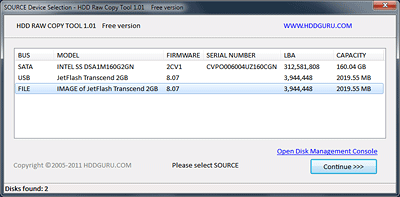
HDD Raw Copy Tool – click to enlargeDeveloper: HDDGURU.COM
License terms: Freeware
Supported OS: MS Windows XP, Vista, 7, 8, Server 2003, 2008, 2008R2
HDD Raw Copy Tool is a utility for low-level, sector-by-sector hard disk duplication and image creation.
The tool creates a sector-by-sector copy of all areas of the hard drive (MBR, boot records, all partitions as well as space in between). HDD Raw Copy does not care about the operating system on the drive – it could be Windows, Linux, Mac, or any other OS with any number of partitions (including hidden ones). Bad sectors are skipped by the tool.
If your media has a supported interface then it can be copied with HDD Raw Copy!
In addition, HDD Raw Copy can create an exact raw (dd) or compressed image of the entire media (including service data such as MBR, Boot records, etc). Again, all filesystems (even hidden) are supported.
Examples of possible uses
Download Windows Executable (works without installation): HDD Raw Copy ver.1.10 portable
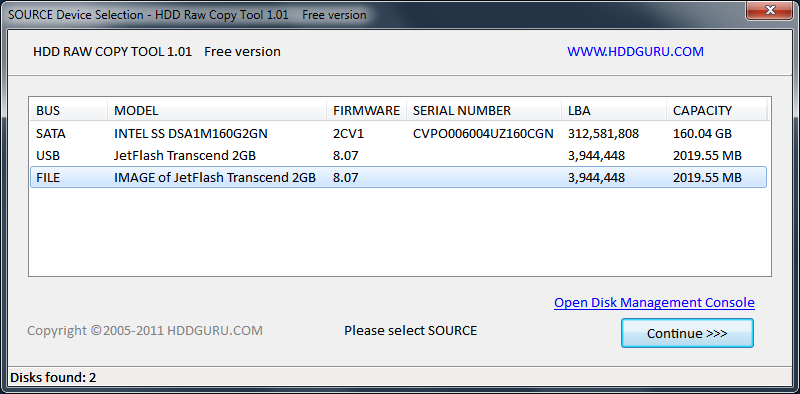
HDD Raw Copy Tool – click to enlarge
License terms: Freeware
Supported OS: MS Windows XP, Vista, 7, 8, Server 2003, 2008, 2008R2
HDD Raw Copy Tool is a utility for low-level, sector-by-sector hard disk duplication and image creation.
- Supported interfaces: S-ATA (SATA), IDE (E-IDE), SCSI, SAS, USB, FIREWIRE.
- Big drives (LBA-48) are supported.
- Supported HDD/SSD Manufacturers: Intel, OCZ, Samsung, Kingston, Maxtor, Hitachi, Seagate, Samsung, Toshiba, Fujitsu, IBM, Quantum, Western Digital, and almost any other not listed here.
- The program also supports low-level duplication of FLASH cards (SD/MMC, MemoryStick, CompactFlash, SmartMedia, XD) using a card-reader.
The tool creates a sector-by-sector copy of all areas of the hard drive (MBR, boot records, all partitions as well as space in between). HDD Raw Copy does not care about the operating system on the drive – it could be Windows, Linux, Mac, or any other OS with any number of partitions (including hidden ones). Bad sectors are skipped by the tool.
If your media has a supported interface then it can be copied with HDD Raw Copy!
In addition, HDD Raw Copy can create an exact raw (dd) or compressed image of the entire media (including service data such as MBR, Boot records, etc). Again, all filesystems (even hidden) are supported.
Examples of possible uses
- Data recovery: make a copy of the damaged drive to attempt recovery on the copy
- Data recovery: copy a damaged hard drive and skip bad sectors
- Migration: completely migrate from one hard drive to another
- Ultimate backup: Make an exact copy of the hard drive for future use
- Backup: create an image of a USB flash stick and copy/restore at any moment
- Software QA engineers: restore your OS hard drives at any moment from a compressed image
- Duplicate/Clone/Save full image of any type of media!
Download Windows Executable (works without installation): HDD Raw Copy ver.1.10 portable
Attachments
Last edited:


 Application doesn't touch media logic so file systems etc. etc. doesn't any matter, it don't understand it, because there is no such needs. It is simple tool to making sector by sector images. Like dd on Linux. It can also compressing images on the fly by some crappy algo, so it is still better use dd with cat and some compressor like xz. Just FYI.