

nanyman
Forum Noob

Hi all, I recently wanted to play the PS3 and stream the process to my friends on discord.
I bought an Avermedia Live Gamer HD capture card, plugged it in and saw NO SIGNAL on a black background.
Started looking for a solution to the problem, but everyone suggested buying a splitter, for me it was not important not to buy it, I bought a capture card and did not want to spend money on something else.
After much searching I found a way on the Russian forum, which suggested to patch the program files from Avermedia called RECentral, and everything really worked. Finally I'll run God Of War and play and even friends will see, I thought, but Discord did not let me do that, every time it just crashed without giving a chance for normal gameplay.
I downloaded the OBS and it saw my capture card, but I again saw the inscription on a black background NO SIGNAL. And guess what I fixed it.
Below I'll show you the procedure that will allow you to stream directly through the OBS bypassing HDCP on the PS3.
IMPORTANT!!! I don't know if this method works on other capture cards from Avermedia, the model that definitely works is the Live Gamer HD C985.
MEGA - h t t p s : / / mega . nz / file /PYUWgZZR#dON8h91m2GLI7HhO877HempAu-1dYjMg76i5Mg1Hqz8 (gather the link)
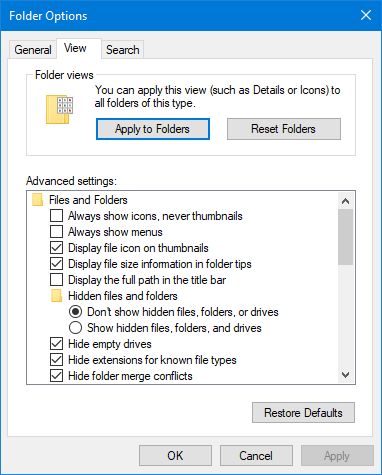
Open Windows Explorer (open any folder).
2.Click on the "View" tab.
3.Select "File Name Extension."
4.If necessary, you can enable the "Hidden Items" option.
5.File name extensions will now be displayed.
2.Click on the "View" tab.
3.Select "File Name Extension."
4.If necessary, you can enable the "Hidden Items" option.
5.File name extensions will now be displayed.
1.Install the driver from the folder (select the required size of the system 32 or 64)

2.Install RECentral version 1.3.0.117.18101201

3.Pull out the file d3d10_1.dll from the Universal HDCP bypass folder and move it to the root folder of RECentral

2.Install RECentral version 1.3.0.117.18101201
3.Pull out the file d3d10_1.dll from the Universal HDCP bypass folder and move it to the root folder of RECentral
1.Run RECentral >> Capture tab >> Advenced
2.Adjust the settings as shown in the picture or adjust your own

Video Format = MP4 (H.264+AAC)
Resolution = 1920x1080
Video Bitrate = 60 Mbps
Audio Bitrate = 256kbps
Framerate = 30
***In the Platform tab select Game Console (MUST)
Press Ready
The software will show "No Signal".
To fix this, you need to remove the HDMI cable from the capture card and plug it back in, voila, you are ready.
2.Adjust the settings as shown in the picture or adjust your own
Video Format = MP4 (H.264+AAC)
Resolution = 1920x1080
Video Bitrate = 60 Mbps
Audio Bitrate = 256kbps
Framerate = 30
***In the Platform tab select Game Console (MUST)
Press Ready
The software will show "No Signal".
To fix this, you need to remove the HDMI cable from the capture card and plug it back in, voila, you are ready.
1. Install OBS
2. Launch OBS
3.Grab our console and see HDCP (sad)
4.Go to the root folder of OBS
5.Rename the file named obs64.exe to RECentral.exe
6. Run the RECentral.exe file and grab the snooze console
7.Rejoice.

2. Launch OBS
3.Grab our console and see HDCP (sad)
4.Go to the root folder of OBS
5.Rename the file named obs64.exe to RECentral.exe
6. Run the RECentral.exe file and grab the snooze console
7.Rejoice.
1. In the Audio Mixer tab select our Source
2. Next Advanced Audio Propertie
Check the Mono checkbox next to the name of your capture.
4.Audio Monitoring against the name of your capture select Monitor and Output

2. Next Advanced Audio Propertie
Check the Mono checkbox next to the name of your capture.
4.Audio Monitoring against the name of your capture select Monitor and Output
Thank you for your attention! I would be happy if you could improve this way or share an easier way
The patch files were made by TriRozhka thank him, I found a workaround through OBS with a friend


