![[Obsolete] WinHIIP by GadgetFreak](/data/resource_icons/0/666.jpg?1531053625)

jolek
Senior Member
-
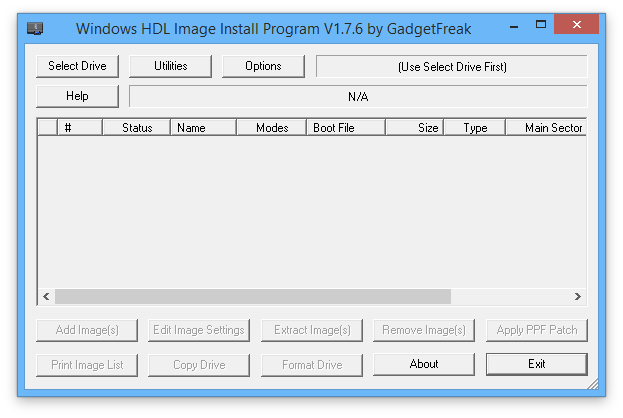
A program to copy disc images directly to a PS2 hard drive (APA/PFS).
IMPORTANT: some users report issues using WinHIIP with OPL,
so use it at your own risk.
There is also HDLGameInstaller which will install games through network or from disk.
Most recent version can be found here:
-
How-to use WinHIIP 1.7.6.
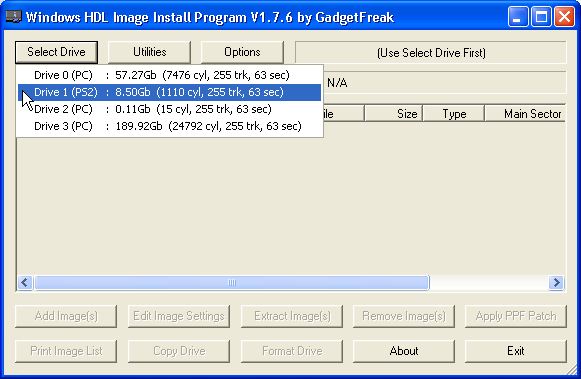
- Select the drive for your PS2. Any installed games will be listed.
- If you haven't formatted the HDD yet, you can do so now by pressing the "Format Drive" button.
Formatting the drive:
This will erase the hard drive and create the default partition structure on the currently selected drive.
The Erase Mode has three options:
- Quick Erases just the required sectors to blank the partitions and image header sectors.
- Partial Erases the first 4Mb of each possible partition / image header block.
- Full Erases every sector of the drive.
The Application setting has three options:
- HDLoader 28bit Standard HDLoader or HDAdvance
- HDLoader 48bit 48bit patched HDLoader or HDAdvance 2.0 +
- Toxic OS DMS4 Pro Standard and Extended (V0.3)
Both of the HDLoader options will change the partition sizes to their defaults.
The Toxic OS mode will change all the default partition sizes to 0Mb and enable the Toxic OS Mode options which allow you to select Standard or Extended partitioning mode.
The editable partition name field allows you to create one extra partition for your own use with other software.
Any partition sizes set to 0Mb will not be created.
Note:
When formatting a drive for HDLoader it is quite acceptable to reduce all the partition sizes to 0Mb, except the "__mbr" and "HDLoader Settings" partitions, as these are not required for HDLoader to work correctly.
Adding games
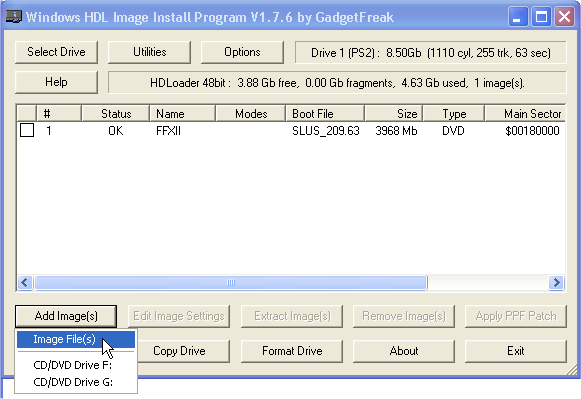
Next press the "Add Image(s)" button to install a game to the HDD.
Images stored on PC hdd:
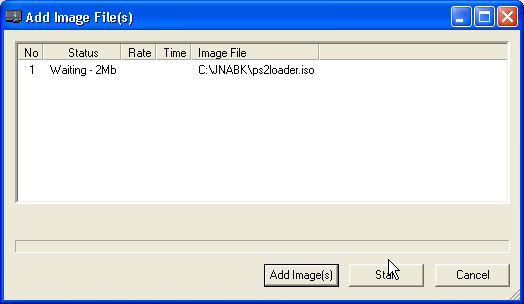
- Select Image File(s) for an ISO or BIN image on your PC's HDD. Navigate to the ISO file. Press "Add image(s)" to add another ISO/bin image to install.
- You can install multiple images from the PCs HDD. Press "start" to begin the installation(s).
- Note: If there is a non critical error during the install process it will change the status of that image but automatically continue with the next image in the list.
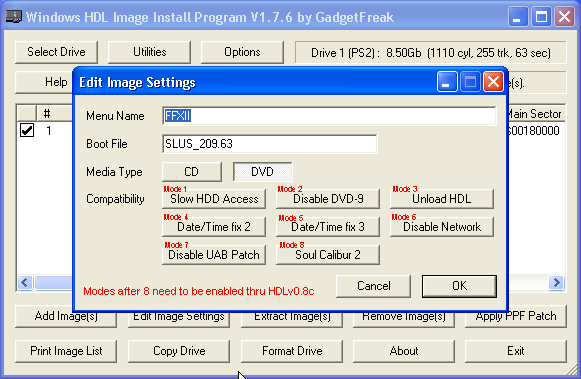
You are given a window to allow you to make settings for the game(s). You can skip this if you don't know what to put. You can edit a game later once you know, by pressing the "Edit Image Settings" button. Put a check in the box in front of the game to edit, then press the button.
Selecting CD/DVD Drive:
This will examine the disc in the drive and display an Edit Image Settings window. After this has been accepted the selected CD / DVD will be installed to the hard drive.
Note: Currently DVD-9 (Dual Layer) DVD's cannot be installed directly, you have to make an ISO image file first using DVD Decrypter, and then install the file.
Apply PPF Patch:
This option is only available when a single image is selected. There can be other games listed, but only 1 can be marked with a check in the box.

Once selected you will be shown a browse window to select the appropriate 'ppf' file containing the patches. If the image is already patched and the 'ppf' contains the undo data, you will be prompted to confirm you wish to un-patch the image. If the 'ppf' does not contain undo data you will be asked if you wish to update the 'ppf' file with the undo data before the patches are applied.
Note: If the image is already patched and the 'ppf' file does not contain undo data you will not be able to un-patch the image.
Utilities:
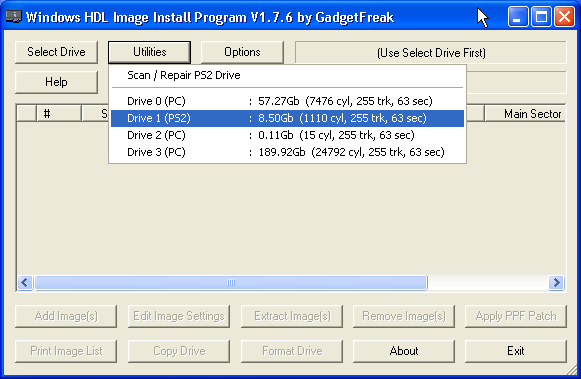
Scan / Repair PS2 Drive
You will be prompted to select a drive from the popup list.
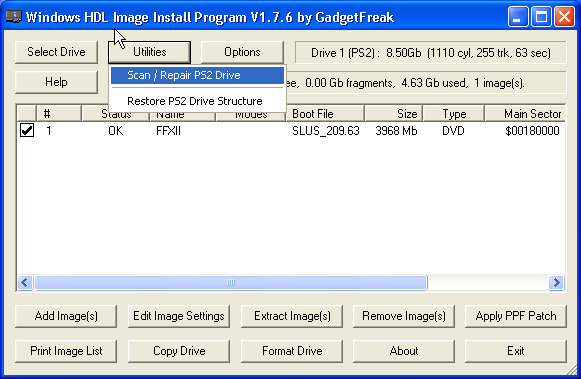
This function will display a window that on the left displays a "tree view" of all the PS2 partitions on your drive and on the right displays a graphical block map of the layout.
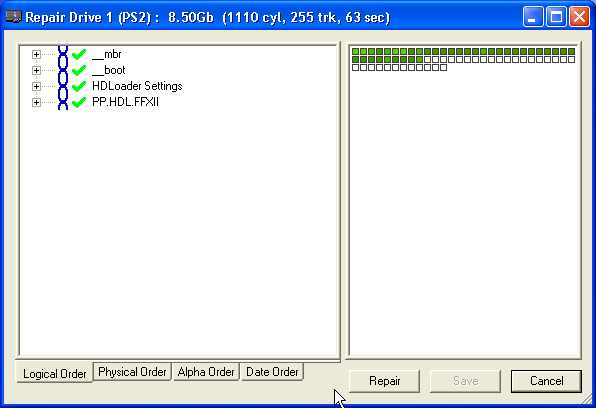
The left hand "tree view" can be changed between:
- "Logical" - Partition / sub partition order,
- "Physical" - Actual sector order,
- "Alpha" - Alphabetical partition order,
- "Date" - Chronological order (oldest to newest).
- On the right hand display each block represents 128Mb of drive space, the smallest PS2 partition size.
- You can click the left mouse button on either side of the display and the related information on the other side will be updated.
- Beside each partition in the left hand display are 2 icons, the left icon shows whether the partition is correctly linked or not and the right one shows if the partition has any errors. You can press the "repair" button to let winhiip attempt to fix any errors.
Restore PS2 Drive Structure
This will look for a file called "WinHIIP.WDS" in the application folder which is automatically created whenever a drive is scanned and repaired. The size of the file is checked and any attached drives that match in size will be listed. A warning message is then displayed requiring you to confirm that you wish to restore the drive structure to the state it was in before the Repair was carried out.
More Help:
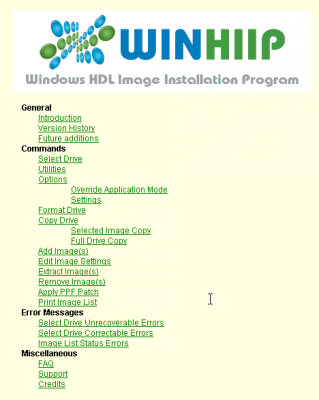
This is a basic guide for most common usage, if you need more help just press the "help" button and a help menu will appear with more in-depth details to Winhiip's functions.
Warning: There are reports that WinHIIP 1.7.6 has problems with a larger disks (e.g. > 1 TiB)
and you cannot add more that 255 games with this tool.
Attachments
Last edited: