Okeanos
Member
Inspired from the work of HWNJ with his POPStarter Game Installer for OPL I've created a simple script for Linux and Windows.
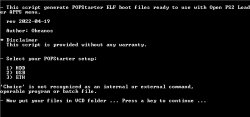
This script generate POPStarter ELF boot files ready to use with Open PS2 Loader APPS menu.
Tested and working on ETH, USB and HDD mode.
I'm looking for feedback
Changelog
--------------
2022-01-02: initial release.
2022-01-03: corrected a typo in Windows script.
2022-01-29: added info about how to start the script.
2022-04-19: fixed wrong title.cfg output from Windows script.
Now scripts are packed in a more conform way to the system. Thanks to Berion suggestions.
Special Thanks
-------------------
krHACKen, ShaolinAssassin, HWNJ, Open PS2 Loader Team, PSX-Place community.
This script generate POPStarter ELF boot files ready to use with Open PS2 Loader APPS menu.
Tested and working on ETH, USB and HDD mode.
I'm looking for feedback
2022-04-19
This script generate POPStarter ELF boot files ready to use with Open PS2 Loader APPS menu.
There are two versions: "pops2apps.sh" is for Linux and "pops2apps.cmd" is for Windows.
POPStarter
----------
https://bitbucket.org/ShaolinAssassin/popstarter-documentation-stuff/wiki/Home
First follow Shaolin Assassin wiki to setup your POPStarter installation.
I recommend to visit also the download section, there are useful tools.
Once tested and confirmed that your setup is working you can go forward.
Requirements
------------
A Windows or Linux computer.
POPStarter installed and working in your console. https://www.psx-place.com/threads/popstarter.19139/
Official Open PS2 Loader installed and working in your console. https://www.psx-place.com/threads/open-ps2-loader.13415/
POPSTARTER.ELF file in the script folder.
Image files of your games already converted in VCD format.
Filename preferably shorter than 31 characters and without spaces.
File extension .VCD must be upper case.
HOW TO
------
- Place your VCD image files in the "pops2apps/VCD" folder.
- Start the script and follow instructions
on Linux open terminal emulator in the same folder as script and start it with command: sh pops2apps.sh
on Windows just double click on pops2apps.cmd
- Transfer the resulting folders inside "pops2apps/APPS" to your "OPL/APPS" device path.
Open PS2 Loader
---------------
In OPL first you need to enable in Settings: Application Start Mode = AUTO
and of course you must enable the AUTO start of your device (BDM, HDD or ETH).
Long story short
----------------
If you prefer you can do all this manually for every game like this example,
assuming your game image is Game.VCD, you have to rename and place POPSTARTER.ELF according to your setup:
- for HDD must be OPL/APPS/Game/Game.ELF
- for USB must be OPL/APPS/Game/XX.Game.ELF
- for ETH must be OPL/APPS/Game/SB.Game.ELF
and you need also a OPL/APPS/Game/title.cfg containing:
title=your game name
boot=your file name.ELF
Troubleshooting
---------------
If a game doesn't start from OPL APPS try to start it from LaunchELF.
This script generate POPStarter ELF boot files ready to use with Open PS2 Loader APPS menu.
There are two versions: "pops2apps.sh" is for Linux and "pops2apps.cmd" is for Windows.
POPStarter
----------
https://bitbucket.org/ShaolinAssassin/popstarter-documentation-stuff/wiki/Home
First follow Shaolin Assassin wiki to setup your POPStarter installation.
I recommend to visit also the download section, there are useful tools.
Once tested and confirmed that your setup is working you can go forward.
Requirements
------------
A Windows or Linux computer.
POPStarter installed and working in your console. https://www.psx-place.com/threads/popstarter.19139/
Official Open PS2 Loader installed and working in your console. https://www.psx-place.com/threads/open-ps2-loader.13415/
POPSTARTER.ELF file in the script folder.
Image files of your games already converted in VCD format.
Filename preferably shorter than 31 characters and without spaces.
File extension .VCD must be upper case.
HOW TO
------
- Place your VCD image files in the "pops2apps/VCD" folder.
- Start the script and follow instructions
on Linux open terminal emulator in the same folder as script and start it with command: sh pops2apps.sh
on Windows just double click on pops2apps.cmd
- Transfer the resulting folders inside "pops2apps/APPS" to your "OPL/APPS" device path.
Open PS2 Loader
---------------
In OPL first you need to enable in Settings: Application Start Mode = AUTO
and of course you must enable the AUTO start of your device (BDM, HDD or ETH).
Long story short
----------------
If you prefer you can do all this manually for every game like this example,
assuming your game image is Game.VCD, you have to rename and place POPSTARTER.ELF according to your setup:
- for HDD must be OPL/APPS/Game/Game.ELF
- for USB must be OPL/APPS/Game/XX.Game.ELF
- for ETH must be OPL/APPS/Game/SB.Game.ELF
and you need also a OPL/APPS/Game/title.cfg containing:
title=your game name
boot=your file name.ELF
Troubleshooting
---------------
If a game doesn't start from OPL APPS try to start it from LaunchELF.
Changelog
--------------
2022-01-02: initial release.
2022-01-03: corrected a typo in Windows script.
2022-01-29: added info about how to start the script.
2022-04-19: fixed wrong title.cfg output from Windows script.
Now scripts are packed in a more conform way to the system. Thanks to Berion suggestions.
Special Thanks
-------------------
krHACKen, ShaolinAssassin, HWNJ, Open PS2 Loader Team, PSX-Place community.
Last edited:


 This is of course only cosmetic, a filename matter.