
You are using an out of date browser. It may not display this or other websites correctly.
You should upgrade or use an alternative browser.
You should upgrade or use an alternative browser.
PS2 PS2 Slim with OPL 1.1.0: Using the Eye Toy Cam
- Thread starter Andymln
- Start date

Ripto
PSX-Place Supporter
If you're playing GAME via USB then eyetoy will not work.Is it possible to use the Eye Toy cam and related games installed on the HDD with Open PS2 Loader v1.1.0? This means the HDD and cam are connected to the two USB ports on the PS2.
If you are using a DIFFERENT device and no pademu (iirc?) then eyetoy will work.
-eyetoy owner
Kevstah2004
Member
Have you tried streaming the iso over the network so the usb module is soley left to control the eyetoy?
Ripto
PSX-Place Supporter
You can not have USB peripherals (EyeToy) if you are using USB as the game's storage during gameplay.
IF you are playing via SMB, Disc, APA, exFAT, MMCE, or even (maybe) mx4sio should all work.
IF you are playing via SMB, Disc, APA, exFAT, MMCE, or even (maybe) mx4sio should all work.
So I understand that to play, I need to find/buy a working eye toy cam and find/buy original games on cd/dvd, correct?
What do you mean by "different device"?
Ripto
PSX-Place Supporter
Do you have discord? I dont have a guide at hand but I can help you navigate the process.I've heard of SMB, I've read something on the forum, but I don't really understand. @Ripto, would you be so kind as to help me set up SMB (and explain its use to me)?
Maybe at the end we can post something here for others in the same boat.

gamerman 5000
Developer
@Andymln
I see you've messaged me privately, friend. Here I am, though I don't know if you've noticed I haven't been replying here very often lately. Business comes first, time is money, but I'll do my best to respond as soon as possible, so please bear with me if I'm delayed.
Getting to the point, what kind of connection do you want to make?
Typical:
1. PS2 to PC via a router?
2. PS2 directly to a router?
I see you've messaged me privately, friend. Here I am, though I don't know if you've noticed I haven't been replying here very often lately. Business comes first, time is money, but I'll do my best to respond as soon as possible, so please bear with me if I'm delayed.
Getting to the point, what kind of connection do you want to make?
Typical:
1. PS2 to PC via a router?
2. PS2 directly to a router?
Nice to see you again, friend....thanks for replying. The second option, "PS2 directly to a router," is definitely my favorite. If possible, I'd like to use my existing USB HDD with all the games already installed (for PS1 and PS2). Will I need to buy a router, or can I use the one I already have combined with my modem? This new setup (OPL SMB) is obviously designed for using games with the EyeToy Cam...otherwise, I would have left everything as is. Will the USB to Ethernet speeds change a bit?
gamerman 5000
Developer
If possible, I'd like to use my existing USB HDD with all the games already installed (for PS1 and PS2).
Since you chose the second option, the process might be difficult because each model is different.
But I'll try to guide you.

Even though routers have USB ports, there's a small chance they won't support the function we're trying to achieve.
And if they do, you must take extreme precautions due to vulnerabilities, such as never sharing confidential information, securing access with a password, and only connecting the drive while playing games.
It's also worth noting that not all routers are compatible with high-capacity devices (I recommend starting with a 16GB or larger USB drive formatted as FAT32, which is generally recognized by most routers).
Will I need to buy a router, or can I use the one I already have combined with my modem?
That one will work for you.
Will the USB to Ethernet speeds change a bit?
Playing over a network is much better than using the console's USB port; you'll notice an improvement in the cutscenes.
Now, let's begin by following these steps:
1. Prepare a 16GB or larger USB drive formatted as FAT32 with the typical folders created by OPL (DVD, CD, ART, etc.) in the root directory. Place a game inside the DVD or CD folder, as appropriate.
If the game is 4GB or larger, use USBUtil, as the FAT32 format doesn't support large files, and create the game in the root directory of the USB drive.
https://www.psx-place.com/resources/usbutil-by-iseko-translated-by-jbliz7665.679/
Once you have that ready, we move on to the next step.

gamerman 5000
Developer
Okay, now let's move on to the most complicated step of the process (configuring the router to share your games).
2. Connect the USB drive to the router and open a web browser to access its settings:
For this, you need to know your router's IP address and enter your credentials (you'll find them on the back of your modem/router).
Look for Samba options like "Samba Service" and enable it.
It will give you a "Host Name," which is the name of your shared folder, then a username and password that you must enter, and then save the changes.
While you're in the settings, look for a "Firewall" option and make sure it's set to "middle (recommended)," and apply the changes.
I don't know if you've accessed your router's settings before. If you don't know your IP address, let me know and I'll help you find it.
You can post screenshots of the settings if you deem it necessary.
2. Connect the USB drive to the router and open a web browser to access its settings:
For this, you need to know your router's IP address and enter your credentials (you'll find them on the back of your modem/router).
Look for Samba options like "Samba Service" and enable it.
It will give you a "Host Name," which is the name of your shared folder, then a username and password that you must enter, and then save the changes.
While you're in the settings, look for a "Firewall" option and make sure it's set to "middle (recommended)," and apply the changes.
I don't know if you've accessed your router's settings before. If you don't know your IP address, let me know and I'll help you find it.
You can post screenshots of the settings if you deem it necessary.
gamerman 5000
Developer
Great.
Let's check that everything is in order and try to access your shared resource. First, what operating system are you using?
Let's check that everything is in order and try to access your shared resource. First, what operating system are you using?
gamerman 5000
Developer
Perfect. The next step is to check if the Samba v1.0 protocol is enabled on your system.
This step is temporary; you'll only do it for testing purposes, as it's not recommended due to its vulnerability and obsolescence. Once the test is complete, you should disable it.
To do this, follow these steps:
3. Press the "windows + R" key and type:
In the window that opens, click on the "Turn Windows features on or off" option.
Find "SMB 1.0/CIFS file sharing support," expand the tab, and make sure all three options are enabled:
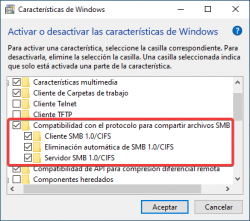
If they aren't already enabled, enable them and click "accept." Then wait for the necessary files to install and restart your computer.
Once the computer has restarted, open File Explorer and type:
Enter the username and password you specified on the router for your USB device.
If everything went well, you'll see your games.
This step is temporary; you'll only do it for testing purposes, as it's not recommended due to its vulnerability and obsolescence. Once the test is complete, you should disable it.
To do this, follow these steps:
3. Press the "windows + R" key and type:
Code:
appwiz.cplIn the window that opens, click on the "Turn Windows features on or off" option.
Find "SMB 1.0/CIFS file sharing support," expand the tab, and make sure all three options are enabled:
If they aren't already enabled, enable them and click "accept." Then wait for the necessary files to install and restart your computer.
Once the computer has restarted, open File Explorer and type:
Code:
\\192.168.1.1\USB_SanDisk32Gen1_1_6ea1Enter the username and password you specified on the router for your USB device.
If everything went well, you'll see your games.
gamerman 5000
Developer
I see you created a folder named "PS2SMB". As I said before, your folders (DVD, CD, ART, CFG, etc.) should be in the root directory; this will save you "headaches" due to a complex structure.
Once you have it, all you have to do is follow the last step.
That's normal; those are folders that are automatically created so that your drive mounts correctly.
Finally, we need to configure OPL so it can connect to our shared resource.
What do you need?

Go to "Network Settings"
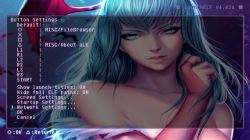
Configure the network as shown on the screen and save the changes (you'll see a file called "IPCONFIG.DAT" saved to the memory card).
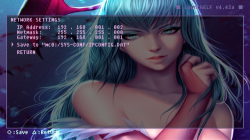
After saving, go to "RETURN" and then "OK". You can now close uLaunchELF.
Open OPL and go to "Network Settings." Configure the parameters as shown in the image. In the "Username and Password" field, enter the credentials you set on the router to access the USB drive.
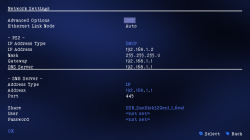
If you've done it correctly, you'll see the games listed in OPL.
Once you have it, all you have to do is follow the last step.
it has created two new ones: ".mvfs" and "System Volume Information".
That's normal; those are folders that are automatically created so that your drive mounts correctly.
Finally, we need to configure OPL so it can connect to our shared resource.
What do you need?
- UlaunchELF (which is a file manager and application launcher)
- Open PS2 Loader, obviously.
Go to "Network Settings"
Configure the network as shown on the screen and save the changes (you'll see a file called "IPCONFIG.DAT" saved to the memory card).
After saving, go to "RETURN" and then "OK". You can now close uLaunchELF.
Open OPL and go to "Network Settings." Configure the parameters as shown in the image. In the "Username and Password" field, enter the credentials you set on the router to access the USB drive.
If you've done it correctly, you'll see the games listed in OPL.
