PS3 [RELEASE] Playstation Home SDAT Dumper (Decrypts SHARC and LUA)

DeViL303

Developer
PSX-Place Supporter
upload_2022-11-20_21-1-20.png


Playstation Home SDAT Dumper v1.00

Here is a small tool that will allow you to dump ALL Playstation Home SDATs and BARs, this includes the newer "SHARC" type SDATs. It dumps totally decrypted files, including all "protected" aka "secure" files such as LUA and LUAC. This is the first time this is possible. It opens up hundreds of GBs of content that can be made to work in offline mode.

NOTE: Due to the fact you need to sign into PSN to load the Decryption key, and that this is a custom "homebrew" application, there is a small BAN risk. So like any scene release use it at your own risk. I take no responsibility for anything that happens to your console. Personally I have used it while logged in to PSN for a week now during testing, no protection used and it was fine. Remember you only have to log in for a second. Then you can log out and keep dumping. OR use RPCS3 with a RPCSN account and no risk at all.

Please keep in mind, This is a heavily modified Home client EBOOT, its basically an app created out of another app. So due to that it can be a little clunky to use.

Considering all that, it has some good features:
  • Dump normal old school BAR files
  • Decrypt normal old school SDAT files
  • Decrypt SHARC type SDAT files
  • All Protected files like LUA and LUAC are decrypted on the fly.
  • Change SHARC key from main menu.
  • Option to copy the decrypted files to USB

Requirements:
  • A PS3 on CFW or HEN, or RPCS3 emulator set up with PPU interpreter capabilities
  • PSN account, SHARC decryption requires logging in to PSN briefly to load the key. You can log out after 2 seconds and it will still work afterwards.
  • For normal non SHARC sdats you must NOT log in to PSN and you do NOT need a PSN account. Cancelling the sign in pop up stops the SHARC key from being loaded and allows those older files to decrypt.
  • It is possible to use it without a USB keyboard, but its really recommended to have one.
  • Webman plugin is required on PS3, or a local webserver is required if on RPCS3. This is to serve the decryption key.
  • This is really only for more advanced users who want to dump and map Playstation Home scenes, fix them, mod them etc.
  • On RPCS3 do not use the debug console mode setting, and do not use the enable /host_root/ setting.

Usage:

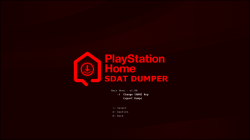
At boot it will show you this menu:
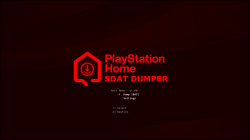
SDAT Dumper v1.0.png

If you choose settings you can choose between changing SHARC key, or dumping to USB.
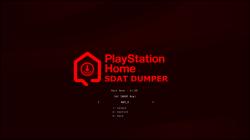
SDAT Dumper v1.0_1.png

Changing SHARC key menu, some SHARC encrypted SDATs use Key 2, basically if it fails to mount then its probably Key 2, or its a normal non SHARc sdat and you need no key (No key = Cancel PSN log in pop up)
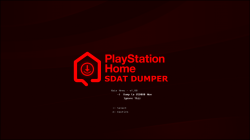
SDAT Dumper v1.0_2.png

Dumping to USB, This feature is a bit slow, but it is very reliable, if you are having issues with small files on FTP, or dont want to install a file manager for any reason, you can use this feature to copy USRDIR/DUMP/ to dev_usb000.
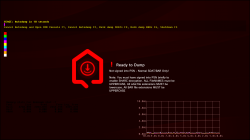
SDAT Dumper v1.0_3.png

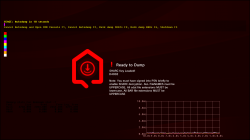
If you click dump SDATS on main menu, and are NOT logged into PSN, you should see this screen. Just cancel the log in pop up and wait a few seconds.
SDAT Dumper v1.0_5.png

If you are logged into PSN and you click dump SDATS you should see this screen after a slightly longer delay:
SDAT Dumper v1.0_4.png


Notes:

1. To facilitate users with no USB keyboard, it will countdown from 10 and then Autodump USRDIR/SDAT/1.sdat up to 20.sdat if they exist. It will also check for USRDIR/BAR/1.BAR to 20.BAR and dump those too.

2. If you want, you can press F1 or F2 on a USB keyboard to cancel the Autodump feature, then use the command console to manually dump SDATs or BARs by typing commands like dumpbar filename.sdat DUMP/FOLDER/

F10 will bring up the console too

3. This way is probably the best, and that is to create custom lua scripts that can batch decrypt hundreds of SDATs at a time. There is an example script inside USRDIR/SCRIPTS/ that shows how to do that. These can be triggered with Keyboard keys F6 to F9.

4. If you find a SHARC type SDAT that will not decrypt on default settings (when logged in), try setting the the SHARC Key to Key_2 on main menu before logging in.


Quirks:
  • Case is important for filenames and extensions, but the case you type is ignored.
  • No matter what you type into console, it will always look for all file NAMES in UPPERCASE.
  • No matter what you type into console it will always look for the file EXTENSION "sdat" in lowercase.
  • No matter what you type into console it will always look for the file extension "BAR" in UPPERCASE.
  • Due to the hacky way its made, error handling is not the best. Sometimes it might say "ready to dump" or" sharc key loaded" but really something is wrong. Just try restart it.

I had help from someone with this, massive thanks, without them it would not have been possible.

Thanks to everyone here at PSX-Place, Aldostools, Bucanero, Esc0rtd3w, Bguerville, STL and everyone else, and BIG shoutout to everyone in the Home Revival community who has been willing to share files and info, Lots of little things came together for the perfect storm to make this app possible. SpookySniper, Splicewave, VelocityGaming5, JustMaster, Jumpsuit, Rew, and all the rest who would rather not be mentioned. Thanks to everyone who leaked files over the years, without you it would not have been possible either.

Please remember, now that we can decrypt EVERYTHING, it is more important than ever that we save as much content as possible, if you ever fix/get any old PS3s, before formatting them, please check for NPIA00005, NPIA00010 or NPEA00013 folders, these can contain valuable CACHE data. Also if you know anyone with a PS3 they have not used for years. Please check them. ESPECIALLY TESTKIT/DEVKIT CONSOLES

More info to come soon about how to deal with the decrypted files after dumping...
 

Attachments

Last edited:
Never really used Home despite having a PS3 since launch. Saw it as Social Media and used to never go on so it is exciting to see this come around so I can give it a go. Just got Insignia's Xbox Live 1.0 going this week so a ton of nostalgia. As always premium work man can't wait to see how far this can go.
 
SETTING UP APACHE (RPCS3 ONLY)

On RPCS3 this extra step is required as you wont have webMAN MOD serving files on localhost (127.0.0.1). If you are not familiar with webservers a simple solution is to just install Xampp.

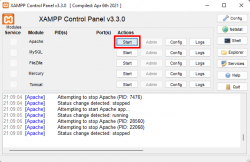
Then open the control panel and start apache.

upload_2022-12-3_21-10-13.png

Then create this folder

c:/xampp/htdocs/dev_hdd0/game/DUMPSDATS/USRDIR/KEYS/

Put these XMLs into that folder. DOWNLOAD HERE or you can just copy these xmls from the SDAT Dumpers install folder.


FILE MAPPING

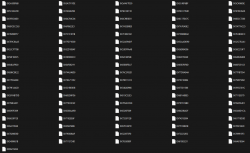
After you have dumped the decrypted files using SDAT Dumper on PS3, and have gotten the files exported onto PC somehow (FTP not recommended). This is what you are left with, This is totally normal as its how the files are stored inside the BAR/SDAT/SHARC archives. I will think about making a little tool that could make this easier at some point. But here is the long version for people who want to know what needs to be done step by step.

upload_2022-11-22_19-24-44.png


1. Renaming:

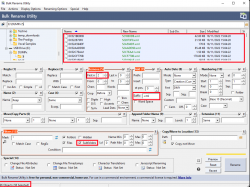
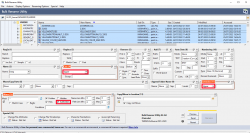
First step is to use a renaming tool to remove the first 2 characters (0X) from all filenames, and also to add the file extension ".xml" to all files. There are a few ways to do this. I use the free tool called Bulk Rename Utility as it can do almost anything related to filenames. It's free and can be downloaded HERE

Here are the settings for this specific tool:
  • Section (5) - Remove - Set First n to 2 chars.
  • Section (7) - Add - Set the Suffix to ".xml"
  • Section 12 - Filters - Tick the box for subfolders if you have multiple scenes in subfolders
  • At the top make sure all files are selected by Clicking on any one and then pressing CTRL+A
  • You can confirm all files are selected at the bottom left corner.
  • Then click the rename button.
upload_2022-11-22_19-25-10.png

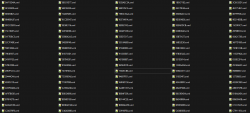
So you should end up with some thing like this.

upload_2022-11-22_19-25-54.png


2. Mapping

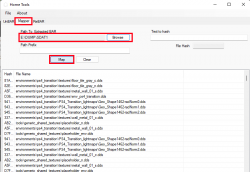
Now you can map the filenames. You can use the original Home Tool by Gaz, all credits go to him. Or you can use this version that has a tiny mod to allow it to find more file types. This will map mp3, bnk files and loads of COREDATA file extensions too. and if you use it in this way it will scan EFX files and map all the DDS files properly too. This mod version will map maybe 90% of the files that the original Home Tool fails to map (Make sure all files are renamed to XML)

DOWNLOAD HOME TOOL v1.01 MOD v8

So Open Home Tools, just choose the middle tab for mapping, then select the folder of renamed "xmls" in the "Path to Extracted BAR" box, ignore the box under that when mapping SCENES. If mapping OBJECTS you need to type " Objects/PUT_UUID_HERE/ into that box.

upload_2022-11-22_1-0-24.png

NOTE: It might take a few minutes to map larger objects and scenes, and the HomeTools application might say "Not Responding", Do not worry about that, just wait for it to finish.

3. File preparation

Now you need to make all filenames UPPERCASE. The main scene file will NEVER map. This is because its path is not mentioned anywhere in the sdat normally, that path is read from an online xml called scenelist.xml, that file would change all the time and have different scenes for each region etc. This does not matter though, as we can name it anything we want and simply add that name and path to localscenelist.xml.

I recommend moving it into the scene files main folder, normally USRDIR/ENVIRONMENTS/XXXXXXX/, I normally give the SCENE file the same name as the PROBE file you will find in there.

Here are the settings for Bulk Rename Utility to make all file names UPPERCASE.

upload_2022-11-22_19-28-58.png

Now these files should be ready for dropping into any compatible base build. Just add the path to the scene file into your LOCALSCENELIST.XML

.
 
Last edited:
Home is sooo much nicer to work on when you can decrypt everything.

None of these were decryptable before, These went from not being decryptable for 7 years (except privately by Destination Home), to being able to get all these Audi minigames working in a couple of hours. This is what real preservation looks like.

upload_2022-11-24_8-43-56.png

upload_2022-11-24_10-34-12.png

upload_2022-11-24_10-34-26.png

upload_2022-11-24_10-34-51.png

upload_2022-11-24_10-34-38.png
 
Hello, I'm trying to get this app to work with no success. At the top of the release post in red, you say:

"OR use RPCS3 with a RPCSN account and no risk at all."

However, this doesn't work for me. I've had an RPCN account that's tested and working for a long time, so I tried the following:

- Installed the pkg into RPCS3
- Moved all the SDATs I wanted to decrypt into the correct folder, making sure the file naming conventions are exactly as described
- Created a custom profile, making sure that it has a clear network connection to RPCN
- Launched the app
- Selected "DUMP SDATS" from the red menu that appears

Every time I do this, RPCS3's message pops up in the upper-left corner saying "Succesfully logged on RPCN!" but then instantly fails saying I need to log into PSN first. I can 100% confirm that these scenes are indeed SHARC, as if I cut its internet connection to make it use the non-SHARC method, it instantly fails, claiming that these use SHARC and I need to log into PSN.

I've tried everything I can possibly think of to get this working - nothing works. How do I fix this?
 
Since this forum doesn't allow you to edit your own posts for some reason, I'll make a second one - I got it to dump, turns out I was doing a simple mistake, however now I have a new problem. I've been able to follow every step in this tutorial perfectly, however I'm currently stuck at "2. Mapping".

When I open HomeTools, select the folder with the xml files, and click Map, the tool IMMEDIATELY hangs and sits there forever "Not Responding". What's going on? Everything else has worked perfectly.
 
Hello, I'm trying to get this app to work with no success. At the top of the release post in red, you say:

"OR use RPCS3 with a RPCSN account and no risk at all."

However, this doesn't work for me. I've had an RPCN account that's tested and working for a long time, so I tried the following:

- Installed the pkg into RPCS3
- Moved all the SDATs I wanted to decrypt into the correct folder, making sure the file naming conventions are exactly as described
- Created a custom profile, making sure that it has a clear network connection to RPCN
- Launched the app
- Selected "DUMP SDATS" from the red menu that appears

Every time I do this, RPCS3's message pops up in the upper-left corner saying "Succesfully logged on RPCN!" but then instantly fails saying I need to log into PSN first. I can 100% confirm that these scenes are indeed SHARC, as if I cut its internet connection to make it use the non-SHARC method, it instantly fails, claiming that these use SHARC and I need to log into PSN.

I've tried everything I can possibly think of to get this working - nothing works. How do I fix this?
I gather from Twitter you have got it to decrypt now.

Just so you know the app has no way to know what type of SDAT you have given it. So it will always show you that message on screen when you are not logged in.

The only way to be sure which type of SDAT you have is to try decrypting it with all 3 different states
  • Not logged in
  • logged in default settings
  • logged in with Key 2 selected first

If your SDAT has still not dumped after trying all 3 states, then it is most likely a corrupt file. So far I have not come across any Home SDATs that it can not decrypt.
 
I got it to dump, turns out I was doing a simple mistake, however now I have a new problem. I've been able to follow every step in this tutorial perfectly, however I'm currently stuck at "2. Mapping".

When I open HomeTools, select the folder with the xml files, and click Map, the tool IMMEDIATELY hangs and sits there forever "Not Responding". What's going on? Everything else has worked perfectly.

HomeTools does this normally. You probably just need to wait longer. Mapping can be a bit slow on larger scenes. It is scanning all the xmls for possible paths, then it is hashing those and checking them against the dumped files names.

There is no progress bar or anything so it just kind of hangs while it maps the files. I will add a note above about this.
 
https://imgur.com/a/y1n84S9

Success, I've restored the Diamond Beach Mansion... almost, but I'm running into some problems that pretty much ruin the entire scene, and I don't know how to solve them:

1. This scene loads a lot of objects, and most of the objects have LUA and LUAC files that share the same exact filename and same exact file path but have very different contents because they're for different functions, like one is for the swimming pool, one is for the sundial, etc. With sdats this works fine, as you can have multiple sdats with files that have the same filename, but since I'm running offline, they all have to be in the same folder or else functions won't work, but they can't all be there because the same filename and same file path. What do I do about this?

2. This scene, the Diamond Beach Mansion, could be purchased in four parts, so it checks your purchases to see which parts to unlock. How do you make it think you've purchased all parts? While looking through the LUA scripts that handle purchases, I've found the 4 ownership objects, but after adding them like normal and adding them to the offline inventory, no change, it still thinks I haven't bought any of them, locking off 99% of the mansion. How do I fix this?

3. Even when adding all missing objects/textures/etc, there's still some missing textures. RPCS3's log says nothing is failing to load. What do I do about this?
 
Another problem has come up, this one game-wide. Anything classified as a minigame outright refuses to work. All files loaded completely correctly, no errors in the log, no missing files, shows up as an interactable object ingame, but pressing X when the prompt appears does nothing. Some examples:

https://imgur.com/a/hyhKh3O
https://imgur.com/a/LMMYAth
https://imgur.com/a/Zu0DHUt
https://imgur.com/a/GPu9WMc

Yet I see countless other people getting minigame-related things working perfectly. What am I doing wrong? Why do so many scene-related things simply not work for me and only for me? Minigames work for other people, interactables work for other people, everything just works for other people, but none of it works for me.
 
Another problem has come up, this one game-wide. Anything classified as a minigame outright refuses to work. All files loaded completely correctly, no errors in the log, no missing files, shows up as an interactable object ingame, but pressing X when the prompt appears does nothing. Some examples:

https://imgur.com/a/hyhKh3O
https://imgur.com/a/LMMYAth
https://imgur.com/a/Zu0DHUt
https://imgur.com/a/GPu9WMc

Yet I see countless other people getting minigame-related things working perfectly. What am I doing wrong? Why do so many scene-related things simply not work for me and only for me? Minigames work for other people, interactables work for other people, everything just works for other people, but none of it works for me.

I think that has something to do with OBJECT.ODC files and CATALOGUEENTRY.XML files that are not present by default when decrypting objects, mostly because OBJECT.ODC was fetched from the server as a separate file. In order to get those minigames working, you're gonna need those two files in the directory of the object (the directory named after the object uuid in the aptly named objects directory, not the minigames directory.)

I have blank versions of these files you can use -- be warned, though. They need to be edited for them to work 100%. Primarily in the two files I listed above. You need to edit those two files to add the UUID wherever it's needed (and optionally you can change the dummy name and description in OBJECT.ODC to match the actual item's details rather than the placeholder data.)

Kind of unfortunate that the actual ODC files from the server seem to be encrypted so we can't just use those; that'd be a lot easier and certainly a lot more authentic.

Here's the link to these files needed for minigames to work. I hope this helps. It contains a dummy OBJECT.ODC and CATALOGUEENTRY.XML that need to be edited where necessary -- as well as EDITOR.OXML (i don't think this file really matters but it's here in case it actually does.)

Adding those files helped me run most of the Hudson and LOOT minigames on a 1.60 offline client without any issues.
 
Success, I've restored the Diamond Beach Mansion... almost, but I'm running into some problems that pretty much ruin the entire scene, and I don't know how to solve them:

@SlyCooperReloadCoded Congrats on your progress.

1. This scene loads a lot of objects, and most of the objects have LUA and LUAC files that share the same exact filename and same exact file path but have very different contents because they're for different functions, like one is for the swimming pool, one is for the sundial, etc. With sdats this works fine, as you can have multiple sdats with files that have the same filename, but since I'm running offline, they all have to be in the same folder or else functions won't work, but they can't all be there because the same filename and same file path. What do I do about this?

Often what I find is that lots of objects for a scene have duplicates of the exact same files, afaik the way it works the sdats for the scene will be mounted to the file system and then accessed like normal files. I have not come across any scenes yet that have file conflicts within the files for that specific scene.

If there are real file conflicts within the object files on one scene then you would have to edit the names of the files, and then edit the objects resources.xml to match the new file names. This could get tricky in some cases though as there might be paths referenced in places other than the resources.xml like in some LUA files maybe.

2. This scene, the Diamond Beach Mansion, could be purchased in four parts, so it checks your purchases to see which parts to unlock. How do you make it think you've purchased all parts? While looking through the LUA scripts that handle purchases, I've found the 4 ownership objects, but after adding them like normal and adding them to the offline inventory, no change, it still thinks I haven't bought any of them, locking off 99% of the mansion. How do I fix this?

I'm not sure how to deal with that issue and have not done any work on anything like that yet. I think those kind of checks can be patched out in LUA and can often be as simple as changing some "false" entries to "true" or something simple like that, but I don't want to clash with the site rules here so would rather focus on free content in this thread. What you do with the information outside of here is none of my business.

This same issue does come up with free content too, where it will check something, the date, or a URL for a response, or if a rewards.xml exists. Normally it can be patched out enough to get the object to work.

3. Even when adding all missing objects/textures/etc, there's still some missing textures. RPCS3's log says nothing is failing to load. What do I do about this?

Another problem has come up, this one game-wide. Anything classified as a minigame outright refuses to work. All files loaded completely correctly, no errors in the log, no missing files, shows up as an interactable object ingame, but pressing X when the prompt appears does nothing. Some examples:

https://imgur.com/a/hyhKh3O
https://imgur.com/a/LMMYAth
https://imgur.com/a/Zu0DHUt
https://imgur.com/a/GPu9WMc

Yet I see countless other people getting minigame-related things working perfectly. What am I doing wrong? Why do so many scene-related things simply not work for me and only for me? Minigames work for other people, interactables work for other people, everything just works for other people, but none of it works for me.


What @ElderLo1 said is correct here. In particular some objects will not work at all unless you have an OBJECT.ODC file in the USRDIR/OBJECTS/UUID/ folder next to the resources.xml, localisation.xml and object.xml. It is hard to know what objects need it so its best just to add an ODC file when mapping ALL objects. Make sure you add the matching UUID into the OBJECT.ODC file too or it will not work. Most of the time the name and description fields in the ODC do not matter but you can fill those out with information taken from the localisation.xml if you want.

Also another problem you might be running into can be a RPCS3 specific issue, There seems to be a bug in RPCS3 where if there is any dead URL it will hang the whole thread that loads files. I recommend testing on a real PS3 to avoid these RPCS3 specific bugs with minigames. You can try replacing any dead URLs with live URLs like http://google.com and this might work to allow RPCS3 to keep loading files in some cases. Generally though by using RPCS3 you are just bringing in more possible bugs.
 
Last edited:
After investigating this further, 14 out of the 19 objects I had to add have two files with the same file path and same file name, and they're referenced in every single LUA script for the scene, no idea which is which or which one it's referring to each time, honestly, looking at their contents, it might not even matter, as the largest version, the one I use, seems to have the contents of the others.

I've always added the relevant OBJECT.ODC to all of them, and none of the files in the scenes I've been repairing call for any URLs, especially not simple interacts like opening the blinds, unless it's getting hung up on screenlinks which I haven't added, but why would screenlinks not working prevent any and all interacts from working? CATALOGUEENTRY doesn't exist for any of these objects as they're unique to the scene and not placeable in other scenes. No idea how to create them if I need to.

I did find the part of the LUA in Diamond Beach Mansion that controls whether or not the areas are unlocked, and it works, however the blockers are still in place, the loading screens that load the other areas don't trigger, and the doors don't open, so I've likely found the door states. I've looked in every single file and have not found the code that controls detection of ownership, either that, or the LUA is broken like the buttons, and I did it right before. Now since I found the items that grant ownership, is there a way to make them appear in "My Purchases"? I think that's why it's not working. The scene has full LUA scripting for the boat ride to the yacht, the swimming pool, everything, I just need to "own" everything, and it seems adding these items to my inventory isn't enough. Is there an /OFFLINECONTENT/PURCHASES.XML or something similar?

I really want to test on a real PS3, however for some reason, despite not touching either ProDG or my PS3 in a long time, ProDG now outright refuses to work, throwing constant "this action is not permitted" errors whenever I try to "load and run executable" or "reset into software mode", and of course the internet doesn't have error codes or documentation of this error at all. Weird, since it worked a week ago and literally nothing changed on either side.

Also, how am I supposed to edit the provided template CATALOGUEENTRY.XML and EDITOR.OXML files? They're blank, and simply adding them into minigames doesn't fix the issue of them not working, so I guess I have to edit them somehow? What should I put in there? How do I "edit them accordingly"?
 
Last edited:
It was the OBJECT file, after I added it:

https://imgur.com/a/WSR9qNC

Now I'm trying to get Salt Shooter to work. Interestingly, all the assets and LUA files load perfectly, the problem is that the activity is always unavailable:

https://imgur.com/a/08rIrNi

How do I get around this? Is it waiting for more assets to load in that never do? I know all of the functions for this game work on RPCS3 because it was a scene during DH's closed beta, I played so much of that. Probably something really simple. I can even see enemies fighting in the distance, taunting me
 
Also, how am I supposed to edit the provided template CATALOGUEENTRY.XML and EDITOR.OXML files? They're blank, and simply adding them into minigames doesn't fix the issue of them not working, so I guess I have to edit them somehow? What should I put in there? How do I "edit them accordingly"?

You don't need to edit EDITOR.OXML in any way. I just put it there just in case it ends up being necessary -- which I doubt it is; but I add it to all of my minigames just to be safe. In CATALOGUEENTRY.XML, the second line should have the following XML element:

In said line, you should see a "uuid" element with nothing in it. Add the UUID of the object you need to map inside the quotes. That's really all you need to do with this file.
 
I ended up putting the "gameName" or "objectName" there and they work. Also, an update on that minigame that doesn't start, I've got it fully working too. Full Salt Shooter (minus clothing rewards) with savestates because offline, so I can save my progress. I've also modded the voice and the music too.

I'd still like help getting the rest of Diamond Beach Mansion working, since making that comment I've gotten it to remove the blockers and activate the loading screens between the areas. However, there's still missing objects and textures despite adding all the missing object files, and the loading screens end prematurely and I just get stuck. I feel like I'm almost there, but I need some help with it.
 
Here's a question I have - how do you add scenes to the offline client? The one I have has a custom navigator controlled by NAV/SCEAMENU.XML, however I can't even begin to figure out how it works. It lists off "destinations" by part of their full name. I've tried adding scenes to the files and then adding an entry and putting the name of a .SCENE file here, but it just creates an empty invalid space with no name and no picture. I can't find anywhere else that would list "destination" names.

On that note, how the actual heck do you find the correct .SCENE and .SDC filename? They're not listed anywhere but don't work as expected if they don't have the right filename. I've spent more time on these two things than anything else Home-related and I just can't figure out how it works. I want to add scenes now that I can but I genuinely cannot figure out how this is set up!
 
Here's a question I have - how do you add scenes to the offline client? The one I have has a custom navigator controlled by NAV/SCEAMENU.XML, however I can't even begin to figure out how it works. It lists off "destinations" by part of their full name. I've tried adding scenes to the files and then adding an entry and putting the name of a .SCENE file here, but it just creates an empty invalid space with no name and no picture. I can't find anywhere else that would list "destination" names.
There are a few ways to access scenes in the offline client.

Default offline Nav Menu
The main thing to do to make them all work is to add the line (Includes scene name, scene type and the path to the scene file) to the USRDIR/ENVIRONMENTS/LOCALSCENELIST.XML. Then you can access it from the normal offline navigation menu without doing anything else.

Important Note: The file extension ".scene" must be written in lowercase in the LOCALSCENELIST.XML. If you put it in upper case there it will not work. The actual filename of the scene file in the filesystem must be UPPERCASE like all other files (at least this rule applies to PS3, not sure about RPCS3).

Custom NAV Menu
If you want to call it from a custom navigation menu then there is an extra step, and that is to add it to the NAV XML with the same name that you used in the LOCALSCENELIST.XML.

Panic menu
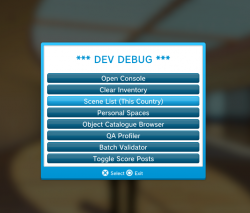
You can also access any scenes referenced in the LOCALSCENELIST.XML from the Panic menu aka Safe Screen (press select) in game. So press Select, Then go to ***DEV DEBUG*** and then choose Scene List.

upload_2022-12-5_13-42-14.png

Command Console
For any scenes referenced in the LOCALSCENELIST.XML you can type "map scene name" into the console to load that scene.

Just remember for all these methods to work you must have added a line for the scene to LOCALSCENELIST.XML. That is what links everything up.
 
Last edited:

Similar threads

Back
Top