

jolek
Senior Member
On a PC download OPL version that you want from its source:
https://github.com/ps2homebrew/Open-PS2-Loader/releases.
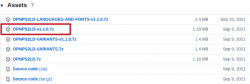
E.g. Stable: OPNPS2LD-v1.1.0.7z.
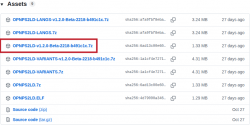
E.g. Beta: OPNPS2LD-v1.2.0-Beta-2218-b491c1c.7z.
Extract it and find one of these files:
E.g. Stable: OPNPS2LD-v1.1.0.ELF.
E.g. Beta: OPNPS2LD-v1.2.0-Beta-2218-b491c1c.ELF.
You can also rename your file to OPNPS2LD.ELF
so that the next time a newer version comes out
you do not need to use Free MCBoot Configurator to add another entry.
Just copy and overwrite an old version with LaunchELF.
Put it on a USB stick that was formatted in FAT32.
Start your PS2 with Free MCBoot.
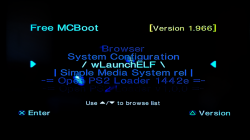
Find and go into LaunchELF which is your file explorer:
Navigate to your MASS drive (your USB stick).
Find the file that you want to copy.
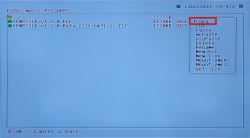
Hit R1. Choose COPY and copy the file:
You should get the confirmation that your file has been Copied to the Clipboard:
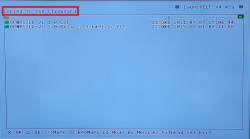
Find where you want to put an OPL file.
On your HDD, MC0 (memory card slot 1), MC1 (2nd memory card slot), wherever.
E.g. mc0:/APPS.
Hit R1. Scroll down to PASTE and paste the file:
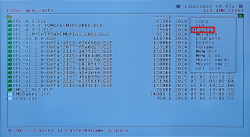
If it has the same name as an old OPL file you can overwrite the file and you are done.
If it has a different name, you can have both versions of OPL at the same time.
Exit from LaunchELF to the browser.
Find and go into Free MCBoot Configurator:
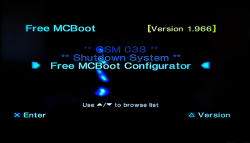
Go to Configure OSDSYS options...
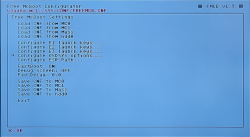
Choose an item number that you wand to edit (e.g. Configure Item 9):
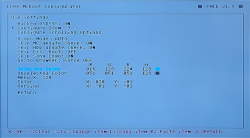
Enter a name (Name) and look for OPL in Path1:
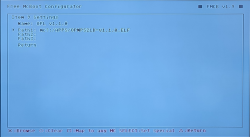
Save settings:
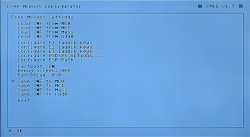
Exit.
https://github.com/ps2homebrew/Open-PS2-Loader/releases.
E.g. Stable: OPNPS2LD-v1.1.0.7z.
E.g. Beta: OPNPS2LD-v1.2.0-Beta-2218-b491c1c.7z.
Extract it and find one of these files:
E.g. Stable: OPNPS2LD-v1.1.0.ELF.
E.g. Beta: OPNPS2LD-v1.2.0-Beta-2218-b491c1c.ELF.
You can also rename your file to OPNPS2LD.ELF
so that the next time a newer version comes out
you do not need to use Free MCBoot Configurator to add another entry.
Just copy and overwrite an old version with LaunchELF.
Put it on a USB stick that was formatted in FAT32.
Start your PS2 with Free MCBoot.
Find and go into LaunchELF which is your file explorer:
Navigate to your MASS drive (your USB stick).
Find the file that you want to copy.
Hit R1. Choose COPY and copy the file:
You should get the confirmation that your file has been Copied to the Clipboard:
Find where you want to put an OPL file.
On your HDD, MC0 (memory card slot 1), MC1 (2nd memory card slot), wherever.
E.g. mc0:/APPS.
Hit R1. Scroll down to PASTE and paste the file:
If it has the same name as an old OPL file you can overwrite the file and you are done.
If it has a different name, you can have both versions of OPL at the same time.
Exit from LaunchELF to the browser.
Find and go into Free MCBoot Configurator:
Go to Configure OSDSYS options...
Choose an item number that you wand to edit (e.g. Configure Item 9):
Enter a name (Name) and look for OPL in Path1:
Save settings:
Exit.
Last edited:


