

VTSTech
Developer
This is how you can capture packets on the PS3 from a Windows 10 PC on the same network.
Things you will need.
1) Wireshark
2) Arpspoof
3) Npcap (Included with Wireshark)
4) PS3 IP
5) Router IP
First. Lets download some things.
Wireshark v3.2.7 x64 https://2.na.dl.wireshark.org/win64/Wireshark-win64-3.2.7.exe
Arpspoof v0.1 https://github.com/alandau/arpspoof/releases/download/v0.1/arpspoof.exe
Next. Install Wireshark. IMPORTANT, When installing check the 'Winpcap API-Compatability' box or Arpspoof won't work.
Reboot.
Ok. Now. Open Windows Explorer. Go to C:\Windows\System32\ and find cmd.exe - Right click on it. Run as Administrator
In the command prompt window type "ipconfig".
Look for a line like this
Make note of the 192.168.x.x number
now do "cd \" to get to the top of C:\ and navigate to where you put arpspoof.exe
I put it in C:\Tools\ARPSpoof\arpspoof.exe
Now type "arpspoof --list" If you get output and not an error. Npcap is installed correctly.
Run Wireshark. And now go to your PS3.
On your PS3. In the 2nd row of items on the XMB, Beside your Usernames. Go to 'Network Settings' and 'Networks and Connection Status List'
Find 'IP Address' - It should look similar to the Gateway Address you made note of earlier.
Go back on PC. In your Command Prompt at the ARPSpoof> folder type this
In my case that looked like:
If everything worked. You should see
Now in Wireshark which should be running and just waiting for a 'Capture Filter' set the filter to this:
Also make sure to select the correct adapter. It will have activity on it, hover over them to see which 'addresses' they have. It should more than likely be 192.168.x.x
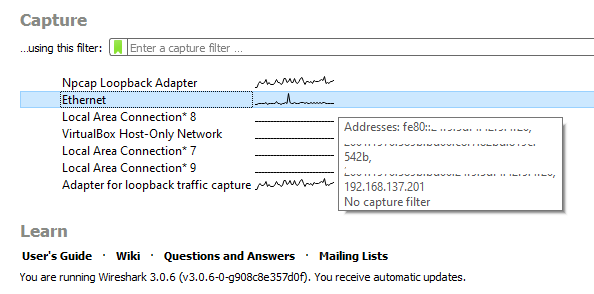
Using your PS3 IP of course...Hit enter and you should start to see any traffic from your PS3 .. going to your computer ... and out to your router. And vice versa.
--
11/01/2019 - Updated link to Wireshark v3.0.6 x64, Added image/text about selecting correct adapter.
10/17/2019 - Updated link to Wireshark v3.0.5 x64
Things you will need.
1) Wireshark
2) Arpspoof
3) Npcap (Included with Wireshark)
4) PS3 IP
5) Router IP
First. Lets download some things.
Wireshark v3.2.7 x64 https://2.na.dl.wireshark.org/win64/Wireshark-win64-3.2.7.exe
Arpspoof v0.1 https://github.com/alandau/arpspoof/releases/download/v0.1/arpspoof.exe
Next. Install Wireshark. IMPORTANT, When installing check the 'Winpcap API-Compatability' box or Arpspoof won't work.
Reboot.
Ok. Now. Open Windows Explorer. Go to C:\Windows\System32\ and find cmd.exe - Right click on it. Run as Administrator
In the command prompt window type "ipconfig".
Look for a line like this
Code:
  Default Gateway . . . . . . . . . : fe80::5e8f:e0ff:fe30:7c1e%8
  192.168.137.1
Make note of the 192.168.x.x number
now do "cd \" to get to the top of C:\ and navigate to where you put arpspoof.exe
I put it in C:\Tools\ARPSpoof\arpspoof.exe
Code:
C:\>cd Tools\ARPSpoof
C:\Tools\ARPSpoof>
Now type "arpspoof --list" If you get output and not an error. Npcap is installed correctly.
Run Wireshark. And now go to your PS3.
On your PS3. In the 2nd row of items on the XMB, Beside your Usernames. Go to 'Network Settings' and 'Networks and Connection Status List'
Find 'IP Address' - It should look similar to the Gateway Address you made note of earlier.
Go back on PC. In your Command Prompt at the ARPSpoof> folder type this
Code:
arpspoof PS3_IP GATEWAY_IPIn my case that looked like:
Code:
arpspoof 192.168.137.212 192.168.137.1If everything worked. You should see
Code:
Resolving victim and target...
Redirecting 192.168.137.212 (xx:xx:xx:xx:xx:xx) ---> 192.168.137.1 (xx:xx:xx:xx:xx:xx)
  and in the other direction
Press Ctrl+C to stop
Now in Wireshark which should be running and just waiting for a 'Capture Filter' set the filter to this:
Code:
host 192.168.137.212Also make sure to select the correct adapter. It will have activity on it, hover over them to see which 'addresses' they have. It should more than likely be 192.168.x.x
Using your PS3 IP of course...Hit enter and you should start to see any traffic from your PS3 .. going to your computer ... and out to your router. And vice versa.
--
11/01/2019 - Updated link to Wireshark v3.0.6 x64, Added image/text about selecting correct adapter.
10/17/2019 - Updated link to Wireshark v3.0.5 x64
Last edited:


