PS4 Recover savefiles from internal hard drive

David LionHeart

Forum Noob
Hi at all, i want to ask if someone know how retrieve savefile from an internal hard drive of ps4 pro. After install update firmware 7.02 the ps4, when it start, do a check for system storage and at 65% it say me "cannot start ps4".
I have tried already many solution as a install update from safe mode, from USB or LAN, rebuild database that give me error SU-41336-7.
I tried to examine hard drive with pc and it seems that have no bad sector on it.
I'm now trying to clone on another hard drive, maybe the internal have some damage that can't see.
I'm searching help to recover in anyway savegame that i haven't backup manually or with PS+
Anyone know how i can do that?
 
To try recover anything, You need decrypt it first (at least user partition). [magic, the same for PS4]
To decrypt user partition, You need EAP Key. [magic]
To get EAP Key, You must exploit console.
To exploit console, You need exploit for Your firmware.
Which You have not because last fw was 5.07. ;)

To get back console alive, try install full firmware from recovery (which means You lost everything).
 
Last edited:
@Berion I wonder would something like this be possible, what if you did not mess with the data inside the partitions at all?

You could try taking a COMPLETE byte for byte image of the drive.

Then there going to be lots of partitions AFAIK. So you might find you can format the hdd, reinstall FW. Put your accounts back on activate them.

THEN you could try copying main hdd partition back over, in theory if the data is untouched it should still be valid? And if the error was in another partition, it might work. or it might complete the check next time for random reason..
 
In theory it is sufficient to making image of partition 27 and restore it after update, but I don't know where and what PS4 store because I don't have and never have hackable PS4.

I'm not sure if it is a good idea to making image of whole HDD because it looks like corruption come from this HDD, and high probably PS4 also writing there some important OS files, maybe there is some validation mechanism to determined installation counts. Just guessing.

But of course it is worth trying.
 
Yeah worth a try for important data if you have the time and a spare hdd, and a bit of knowledge., I was just saying take complete backup in case first test does not work, and you need to try restore for example partition 22 and 27 to get it to work....Might be a bit of trial and error involved so you want to be able to start from scratch if required.

I bet there is some kind of restoring possible using this method, even if it would not work in this case due to actual real corruption of the important data.
 
@Berion
The console work normally if i used another hdd (i tried already to put original 1TB hard drive and reinstall software) but doing so i will lost all savegame...

@DeViL303
I'm trying now to do a complete byte for byte clone or create a image of the old hdd to see if that work.
For last, i'll try to copy only main partition where the savegames are stored.
I hope that one of the process work...
I read somewhere that the last firmware 7.00, 7.01, 7.02 have create some incompatibility with other hard drive. Mine is a toshiba with 2TB (change original for more space).
Maybe the update create this incompatibility with it because the problem is the check of system storage and not the system software...
In safe mode, if i install the update with USB, the update go trough all the process to 100% with no issue.
Then, when ps4 pro restart do the system check another time and the problem occur...
 
Hmmm, if it is a problem with your specific drive on a hardware level, you might find that imaging the drive onto another type of hdd might work, no idea really, these are just the kind of things I would try.

If you really want to recover it, the most important thing is to have an image, so you can make multiple attempts without risking the data.

If you are looking for a good replacement I have firecuda 2TB SSHDs in all my ps4s, they work great.
 
Little update:
Cloning byte for byte the intere hdd doesn't work...
The sshd clone give me the same error... check storage and nothing can't start ps4. So the problem is really the corruption of the system software and nothing else.
I want to try to backup/cloning only partition 27 (where the savegames are stored) and try to copy/restore on the sshd after it will be formated from ps4 pro.
I try already to do that with minitool partition wizard but it wont let me copy the partition because it say that the space on other hard drive (after delete the same partition on new sshd and leave only others 14 partition that was created from ps4) is less that needed.
How is it possible? The size of partition are the same...
@Berion @DeViL303 Do you know other programs or another procedure to do that?

(Sorry bad english, i'm self-taught)
 
Cloning the drive was worth a try but just the specific hdd partition with the important data on it has more chance of working. I do not know why it wont let you clone a partition of the same size onto the new drive..

Maybe someone else can help but I am out of ideas.
 
I recommending DMDE on Windows and dd on Linux. But if some program tells You that size is different, then it must be different. You need exactly to byte precision exactly the same size. And of course partition image must be sector by sector copy, not compressed and without any additional data. Of course You must be very careful what decision You making because those applications are not designed for "ordinary users" but "power users" which understand what they are doing. ;)

BTW: I'm not sure if this is always partition number 27. But for sure always the largest in drive.
 
Last edited:
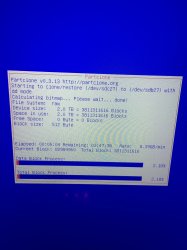
I don't know why other programs can't give me the option to copy partition but now i'm trying to copy partition 27 (yes @Berion is the largest in the drive) with clonezilla.
I hope that can resolve the problem in this way.
 

Attachments

  • 5D7712B2-B74B-4D13-9C7A-8DDB8DEAD067.jpeg
    5D7712B2-B74B-4D13-9C7A-8DDB8DEAD067.jpeg
    1.4 MB · Views: 327
um, did it work? Because Im in the same predicament right now...
Some people jy¡ust ask for help then never report back if it worked or not
 
For those interested, the original OP posted his conclusion in another thread:

Bumping this since I solved a very similar issue inspired by the conversation above.

This is a lengthy post but since I'm unsure what steps fixed it I include pretty much everything, hoping it'll be helpful for someone.

tl;dr
  1. Made full disk image and wrote it to new disk - same issue
  2. Initilized the new disk - PS4 boots but all data lost
  3. Tried different combinations of partitions from the old disk and "clean" partitions from the initilized disk
  4. ????
  5. Wrote full disk image to new disk again - suddenly works
Doesn't make sense to me.
Both step 1 and 2 below failed the first time but were successful when tried later.
My only theory is that some flag in NVS or whatever got cleared along the way or some other black magic...

Here's the full version:

Background:
My PS4 fell down from the wall shelf to the couch while it was powered on. The power cable also got unplugged during the fall.

When starting it up again it started checking storage, but after 24% it stopped and said the PS4 could not start and asked me to insert USB to initialize the disk.
Rebooting into the real Safe Mode, I tried:
  • Update System Software: No errors but back at square one after reboot
  • Restore Default Settings: SU-41336-7 error near 100%
  • Rebuild Database: Console just rebooted and back to square one

Step 1: 1:1 copy of old disk
First I did an image file of the full disk in Ubuntu.
dd slowed down to ~1MB/s after a while, so I aborted and continued with ddrescue.
Used ddrescue -O just in case that might help with slowdowns ("Close infile and then reopen it after every read error encountered during the copying phase").
Code:
sudo ddrescue -O -vvvv /dev/sdb /mnt/z/ddrescue.img /mnt/z/ddrescue.map
#Retry failed sectors
sudo ddrescue -O -vvvv -r 3 /dev/sdb /mnt/z/ddrescue.img /mnt/z/ddrescue.map

ddrescue only failed to read 2 sectors (8192 bytes) of the user data partition.
The resulting image was identical in size compared to the old disk, and partition table/partition types were also identical.

Then I wrote the full image to a new disk:
Code:
sudo ddrescue -f -vvvv /mnt/z/ddrescue.img /dev/sdb /mnt/z/ddrestore.map

Booting from the new disk resulted in the same problems as with the old disk.
Booting Safe Mode and selecting "6. Initialize PS4" made the console boot again, but obviously all data was lost.

Step 2: Initialised disk + partion 27 from old disk
I wrote the full image to the new disk again, followed by another init from Safe Mode.
(My new disk was not the same size as the old, so writing old image first kept partitions correct size after init)
I did a backup of all initialized partitions except parition 27 (user_data), for later use.
Then I copied only partition 27 from the original image:
Code:
#Mount image
sudo losetup -Pf /mnt/z/ddrescue.img
#Show mounted images, ex ddrescue.img = /dev/loop14
losetup
#Confirm mounted partitions show up correctly
sudo fdisk -l /dev/loop14
#Copy partition 27 to disk
sudo ddrescue -vvvv -f /dev/loop14p27 /dev/sdb27

PS4 failed to boot again, and in Safe Mode the only option available was to initialize (others were grayed out).

Step 3: Old disk image + clean partition 19
Then I copied all other old partitions except 19 (system_data):
PS4 booted into file system check, but was actually able to complete it and continue booting.
Settings were reset and user accounts were gone.
All applications/games/other files were also gone, but looking at Storage in the options it said ~800gb in use and ~100gb free.
Rebooted into Safe Mode and selected Rebuild Database:
Completed successfully.
After reboot all applications and screenshots were visible, but no save data.
PSN-applications failed to update (CE-32958-7) and launch (CE-38612-0) though.

I also tried to rewrite full old image to disk then write image of "clean" partition 19: Same exact result.

Step 4: Old disk image (modified in step 3) + partition 19 from old disk
By accident I then wrote old partition 19 to disk and to my surprise it booted:
Users were then restored but logged out, PSN apps worked but still no save data.
Logging in to PSN and rebuilding database didn't help.

Step 5: Old disk image + old partition 27 (modified in step 3-4)
Comparing active partitions to backup image: partition 13, 17, 19, 25, 29 differed. Others (except 27 obviously) were identical.
Writing these partitions to disk, ending up with user_data from previous step and other partitions from old disk:
Save created during troubleshooting was still there, but old saves still missing.
Forcing disk check by unplugging power while running or rebuilding database made no difference.

Step 6: Old disk image + old partition 19 (modified in step 5)
I kept the current partition 19, but overwrote all other partitions with old image:
Boots to disk check but completes.
Same as with last test: Save created during troubleshooting was still there, but old saves still missing.
Rebuild database: Old saves reappeared!

Step 7: 1:1 copy of old disk
So I had this theory that this should work:
Write full old image -> initialize + backup partition 19 -> write full old image again -> write initialized partition 19 -> boot PS4 past disk check -> write old partition 19

After completing only the first step I booted the PS4 to confirm it was not working, but it was!
It booted to disk check as before, but this time it completed:
System settings were reset. User accounts were still there but logged out from PSN.
All other data was still there: Saves, applications, screenshots...
Some saves for NHL 19 were corrupted, everything else was successfully backup to USB!

Step 8: Old physical disk
Trying to boot the old physical disk again:
Resetting settings reported CE-30005-8, that specific code might be new.
Other than that the issues were the same as from the start: can't get past disk check etc.
Since the disk still has bad sectors I guess this is expected.

Step 9: 1:1 copy of old disk
Same results as in step 7. Doing step 8 inbetween didn't break things.

 
Last edited:
@Gurthang Thank You for insight with detailed road.

Are You by "initializing disk", have in mind "initializing console" which is formatting HDD by PS4 itself using full firmware on USB? Because if yes, I don't see any sense here in restoring disk image and then performing that by PS4 which will erase all data (it making clean GPT and all partitions).
 
@Gurthang Thank You for insight with detailed road.

Are You by "initializing disk", have in mind "initializing console" which is formatting HDD by PS4 itself using full firmware on USB? Because if yes, I don't see any sense here in restoring disk image and then performing that by PS4 which will erase all data (it making clean GPT and all partitions).
In PS4 Safe Mode there are two options for "Initialize PS4": "6. Initialize PS4" and "7. Initialize PS4 (Reinstall System Software").
The one I'm referring to is number 6, which apparently deletes user data/settings etc but keeps partition sizes (without need for firmware on USB).
The only reason I did the additional steps is that my old disk is 1tb while the test disk is 4tb. Doing it this way the partition sizes remained the same after initializing (still only 1tb used with 3tb unused).
I assume number 7 would wipe the disk and use all 4tb, but I never actually tried it.
 
@Gurthang In theory, You could probably manually expand it by:
  • Modifying 1st GPT to cover up whole disk space.
  • Moving all partitions after p27 to the end of disk, right before place for 2nd GPT.
  • Modifying GPT again to enlarge p27 to target size.
  • Recreating 2nd GPT.
  • Updating mappings.
  • Decrypting p27 and exposing its mapper as device for QEmu on which NetBSD will be run.
  • From NetBSD, using growfs to expand current UFS2/FFS to new size.
  • Detach everything and enjoy larger size... or mandatory full format. :D
 
@Gurthang I'm trying to recover screenshots and video clips and I already made an image of the ps4 hdd using hdd raw copy tool (which took almost 20 hours btw). How do you boot the console from the new hdd tho? I tried it by connecting the new drive to usb but the console doesn't recognize any storage device.
 
@Lorenzo Jabber It cannot be connected to USB but SATA. SATA is for internal HDD, with GPT and pierdylion of encrypted partitions with various of filesystems and raw. USB is for only MBR/GPT with one not encrypted partition with FAT32 or exFAT. Plus eventually for encrypted and formatted in unknown yet way so called PS4 External Storage.

Disk image You making so ridiculously long because You chose to compress it (*.imgc). By default, HDDRCT using LZO. You should chose different format (*.img) and that would take ~30 min (with SSDs and USB 3.x).
 
Last edited:
@Berion I thought it was normal to take that long I made a sector by sector image like you told me in another thread, and I didn't see any options when I made the image, it just asked me source and target and then started. How am I gonna recover the data if I didn't make a sector by sector copy?
 

Similar threads

Back
Top