Leonardo Meireles
Member
Can anyone provide evilnat 4.89 550/700mhz?


Hi, English is not my native language. Thank you so much to zecoxao and all the people who made this possible. I'd like to try it on a PS3 Slim 2500. I have a question: how can I see the speeds of the RSX and the VRAM? (I'd like to see those speeds not only the temperature).
By the way, I have cleaned the PS3 and changed the thermal paste with Artic MX-4 before, but for this overclock, is necessary to delid? (PS3 Slim 2500, with fan control of webman MOD).

Thank you! it worked (I just had to slightly edit the VshFpsCounter.yaml to show the speeds of CPU and GPU).
I have a question about the standard PS3 RSX speeds: reading about the PS3 specs I've seen that the RSX is 500 MHz, but also in other sources it says that is 550 MHz, so I wonder, are those RSX 550 MHz from the later PS3 models (Super Slim 4300) ? or does it mean that the PS3 works at 500 MHz, but sometimes can overclock itself to 550 MHz?
I read that the RSX is 550 MHz from techpowerup.
How did you get it to show? Mine won't show it even though it's set to On. It'll show CPU speed (3.2Ghz) but just temp under GPU

You have to edit the file called: VshFpsCounter.yaml to show the speeds of CPU and GPU + VRAM, open that file with a text editor and change:
showCpuInfo: On
showGpuInfo: On
You have to search for that file: VshFpsCounter.yaml
If you are using webMAN MOD, then according to its official gitHub page:
FPS Counter now can be customized editing /dev_hdd0/tmp/wm_res/VshFpsCounter.yaml
If you're not using webMan MOD, then I don't know where that file is and you would have to search on the installation instructions of RouLetteVshMenu (but I think it's easier just installing the latest webman Mod, because it already has it integrated, and besides webMan Mod is very useful).
Good luck!
Unfortunetly, it looks like both of those options are already set to on. I did change those, but they had no effect, however changing showRamInfo does. I made sure they are On and not on and the plugin runs fine. After a few seconds, it does show CPU speed, but never shows the speed of the GPU. Can Neither confirm or deny the overclock.

How can I customize the overlay?
I only want it to show the cpu and gpu temp and fps that's all
is it possible ?!
version: 1
overlay:
   displayMode: XMB_GAME # Available options XMB_GAME, XMB, GAME
   position: TOP_LEFT # Available options TOP_LEFT, TOP_RIGHT, BOTTOM_LEFT, BOTTOM_RIGHT
   showFPS: On
   showCpuInfo: On
   showGpuInfo: On
   showRamInfo: Off
   showFanSpeed: On
   showFirmware: On
   showAppName: On
   showClockSpeeds: On
temperatureType: BOTH # Available options BOTH, CELSIUS, FAHRENHEITInstall the latest webMAN MOD then use http://0/edit.ps3/dev_hdd0/wm_res/VshFpsCounter.yaml
Follow the instructions in the file then SAVE. You will see the changes the next time you load VshFpsCounter.
Code:version: 1 overlay: displayMode: XMB_GAME # Available options XMB_GAME, XMB, GAME position: TOP_LEFT # Available options TOP_LEFT, TOP_RIGHT, BOTTOM_LEFT, BOTTOM_RIGHT showFPS: On showCpuInfo: On showGpuInfo: On showRamInfo: Off showFanSpeed: On showFirmware: On showAppName: On showClockSpeeds: On temperatureType: BOTH # Available options BOTH, CELSIUS, FAHRENHEIT
If you load the plugin through boot_plugins.txt (I do not recommend it) you have to the install the latest plugin 2.6
I followed what you said but still no effect
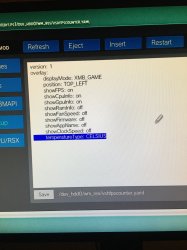
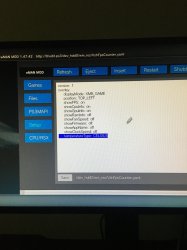
I put all the instructions manually (see photo)and save but nothing has changed ! any idea why
The file should be named: /dev_hdd0/tmp/wm_res/VshFpsCounter.yaml
The file name shown in the picture is all lower case.
does it improve ps2 emulation performance?
How about now ?! I try again but still the same, is there other ways
thx
version: 2
overlay:
 displayMode: XMB_GAME # Available options XMB_GAME, XMB, GAME
 position: TOP_LEFT # Available options TOP_LEFT, TOP_RIGHT, BOTTOM_LEFT, BOTTOM_RIGHT
 showFPS: On
 showCpuInfo: On
 showGpuInfo: On
 showRamInfo: Off
 showFanSpeed: On
 showFirmware: On
 showAppName: On
 showClockSpeeds: On
 temperatureType: BOTH # Available options BOTH, CELSIUS, FAHRENHEIT
textSize: 16.0There is not evidence.
The path is: /dev_hdd0/tmp/wm_res/VshFpsCounter.yaml
If you installed the latest webMAN, the config will show:
Code:version: 2 overlay: displayMode: XMB_GAME # Available options XMB_GAME, XMB, GAME position: TOP_LEFT # Available options TOP_LEFT, TOP_RIGHT, BOTTOM_LEFT, BOTTOM_RIGHT showFPS: On showCpuInfo: On showGpuInfo: On showRamInfo: Off showFanSpeed: On showFirmware: On showAppName: On showClockSpeeds: On temperatureType: BOTH # Available options BOTH, CELSIUS, FAHRENHEIT textSize: 16.0
You can edit the On/Off or the option next to # (check the possible values)
Use L3+R3 to enable/disable the FPS plugin.
Thanks for the overclock option.
Btw, "4.89_Evilnat_Fix_for_SD_display_by_sandungas_req_dev_blind_enabled.pkg"...
... refuses to install here. Hope to see a bugfix with overclock option build it in near future.