PS3 qCFW - Arrives to Slim (2500-3000) & SuperSlim (4000-NOR) PlayStation 3 Models

Major Updates

.
Original Article (Jan. 30): The evolution of PlayStation 3 (PS3) exploits rides high in 2026, In early-mid 2025 we seen developer and researcher @aomsin2526 (aka Chattrapat Sangmanee) show us a hardware exploit that provided some additional power to PS3HEN with the disclosure of the BadHTAB hardware exploit. The hardware exploit was soon replaced with another hardware exploit also from @aomsin2526 that we know as BadWDSD. While BadHTAB provided some additional functionality to PS3HEN like OverClocking & Linux Support. BadWDSD would proved to be the better foundation needed for what would become the next phase of the overall project.

Focusing now on the software side, the next phase from @aomsin2526 came in the form of a "qCFW" , this was a CFW that was built using Evilnat 4.92 PEX for the late Slim (2500) / SuperSlim (NOR) model PS3 Console's !!! While PS3HEN provided those once dubbed "nonCFW models" with many CFW like feature's, there were a number of abilities that were restricted to only CFW user's. Now with the release of BadWDSD with qCFW that gap has shrunk considerably to where 99% of CFW task can now be done on a qCFW installation. The process for installation of a qCFW is different then the traditional PUP installation of a Firmware, but you will still be running what is essentially a ("quasi") custom firmware running the cobra payload and based off Evilnat PEX CFW. Allowing for even DEX features on a SuperSlim (NOR) + Slim (2500).

PS3HEN developer @esc0rtd3w also had some work in this project as PS3HEN is essential in the installation/operation of qCFW/BadWDWD. You must be running v 3.4.1 Beta-test #4 or higher for support of the latest qCFW installation. Checkout this hardware/software modification that will supercharge thoseSlim 2500/3000 & Superslim (NOR) models. Take note of your SuperSlim model as the eMMc models are not supported.
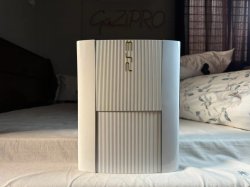
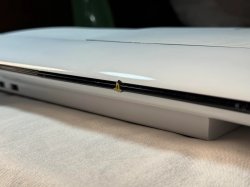
i-have-built-the-ultimate-ps3-super-slim-v0-6vggxy2we1ac1.jpg ps3_white_Superslim.jpg
  • Always view official link for latest updates: https://github.com/aomsin2526/BadWDSD

    .
    BadWDSD


    .
    This is a hardware modchip for Sony PlayStation 3. By using Raspberry Pi Pico (RP2040), It is possible for non-CFW compatible models to boot qCFW.​

    Supported models
    • All CECH-2500
    • All CECH-3000
    • CECH-4x00 with NOR flash
    • 540772857-7066c760-a097-45ba-9697-6022c9cf1e07.png

    Models not Supported
    • CECH-4x00 with eMMC flash is NOT supported
    • 540773712-6592b99e-f80f-4319-a450-10a894aa5164.png

    Notice:
    1. One way to know if your console is eMMC or not is enter safe mode. If you see Change system storage option, It is eMMC.
    2. Other way is try to install Stagex. If it says Flash is not NOR then it is eMMC.


    • .What is qCFW?


      .You still can't install CFW PUP, so new variant of CFW must be made. This is called quasi-CFW.
      It is heavily based on Evilnat PEX CFW. And will support every feature except: Dumping eid_root_key and anything that needed it.

      Note: Cobra must be active at all times or some feature will not work properly.

      qCFW quirks
      • For some unknown reason, When you turn on the console using wireless controller it won't sync. You must power cycle the controller for it to sync.

      Note on DEX mode
      • DEX mode is fully supported. But any kind of firmware installation or update is not possible while in this mode.
      • This means if you somehow need to reinstall the firmware such as corrupted HDD, you are stuck.
      • To recover, use BANKSEL pin on the modchip to go back to OFW.

    • Installation (Software)

      .
      FOR FIRST INSTALLATION, BACKUP FLASH FIRST!!!.

      IF SOMETHING GOES TOO WRONG AND YOU DON'T HAVE BACKUP, YOUR CONSOLE
      MAY BE PERMANENTLY BRICKED

      1. Prepare the USB drive by DELETING old qcfw folder if existed, DO NOT OVERWRITE!! then download qCFW and extract it into your drive like this:
      1. Install PS3HEN 3.4.1 or later
      2. Plug your USB drive into RIGHTMOST USB port of your ps3
      3. On XMB, Enable HEN then use Network -> Hybrid Firmware Tools -> qCFW Options -> Install Stagex option. It must show Success
      4. If not already, Install the modchip by following Installation (Hardware) section
      5. After modchip installed and power plugged in, wait until LED of modchip becomes solid. If it doesn't solid after a while, check SC_RX/SC_TX wire
      6. Turn on the console. modchip LED should flash briefly with triple beep right after. This means exploit is successful. If your console keep turning off and on, check CMD/CLK wire and Stagex
      7. You should be on XMB now. now Enable HEN then use Install qCFW option
      8. If it tell you to reinstall firmware and try again, do it ONCE.
      9. Your screen will appear frozen. it is installing. This process take 10-20 minutes. If something goes wrong during this step, you should be still able to recover by entering safe mode and reinstall firmware normally
      10. Then it will reboot itself. you should be on qCFW and see Evilnat logo now.
      11. Congrats! qCFW installation is complete
      • From now on, modchip will be required to boot the console until you go back to OFW again
      • This can be done by reinstalling OFW/HFW firmware normally. Then after this you can disable or uninstall the modchip
      • If thing goes too bad to the point of not being able to enter safe mode at all, you can use BANKSEL pin instead.
      • If you flashed bad Stagex.bin or CoreOS.bin, see Recover from bad Stagex.bin or CoreOS.bin flash section.
      Installation (Hardware)

      .Currently, Raspberry Pi Pico (RP2040) and RP2040-Zero are supported.
      • Only install modchip after Stagex is installed to console flash from above section.Otherwise it won't boot,
        • if you already installed the modchip, You can use HOLD pin to temporary disable the modchip without unsoldering it.

      Since I don't have 2500 and 3000 model to test, it must be done by other people. If you know the solder location please tell me. Thanks.


      Pico
      RP2040-Zero
      3000
      4x00

      • To flash .uf2 file (it is included in qCFW zip), simply connect modchip USB port into your PC while pressing BOOTSEL button. Then new drive will appear, simply drag .uf2 file into it.
      • You should see LED blinking. Flash successful and ready to use. You can disconnect it from your PC.
      • Exclude power and ground, you only need to solder 4 wires that marked red (CMD, CLK, SC_RX, SC_TX). Other pin is optional.
      • It is possible to power the modchip using external power as long as it is active during ps3 standby

      Pin description
      SIGNAL PIN:
      CLK - XDR CLK signal
      CMD - XDR CMD signal
      SC_TX/SC_RX - Syscon UART signal
      DEBUG - Optional modchip UART signal, for debugging and accessing syscon (baud 576000, NOT 57600!)
      CONFIG PIN:
      Short to ground to activate
      HOLD - Disable the modchip without needing to remove power or unsolder
      LITE - TODO
      BANKSEL - Go back to OFW forcefully. It is equal to syscon command w 1224 00. Only use when absolutely needed. You can't turn on the console while this pin is shorted​

    • Update qCFW
      • You can't update qCFW while on qCFW. you must go back to OFW first.
      • Simply reinstall firmware normally, then use Install qCFW option with updated files on USB again. No need to do anything else
      • When updating files on USB, delete whole qcfw folder first. Don't overwrite or it may causes problem.


      Go back to OFW using PUP method (Recommended)
      • Always use this method when possible. Simply reinstall firmware as normal. No extra steps required.
      • If you want to uninstall the modchip, you can do so after this


      Go back to OFW using BANKSEL pin
      Avoid this unless absolutely needed.
      DO NOT GO STRAIGHT TO THIS PIN WITHOUT TRYING TO BOOT THE CONSOLE WITHOUT MODCHIP FIRST!, IF IT SHUT IFSELF OFF, THEN YOU CAN FOLLOW BELOW

      1. Unplug your console
      2. Short BANKSEL pin to ground
      3. Plug in your console, wait until modchip LED flashes very fast. Then it is successful. You can't turn on the console while this pin is shorted
      4. Unplug your console and unshort the pin. If necessary remove or use HOLD pin to disable the modchip
      5. Plug in your console again and turn it on, you will likely to get black screen. This is expected since dev_flash is still qCFW but you're on OFW now
      6. Enter safe mode and reinstall firmware normally to get full recovery

      Recover from bad Stagex.bin or CoreOS.bin flash
      • No worries, your console isn't really bricked.
      • FIRST, disable the modchip then try to boot the console if it boots then all is good.
      • If it shut itself off, Simply follow Go back to OFW using BANKSEL pin section above. But this time disable modchip before boot as well.

      Downgrading
      • After booting the console with modchip, It is possible to downgrade the firmware up to 4.80. It can't be done in XMB. You must use safe mode.

    • OtherOS
      It is different from CFW. Simply follow these steps.
      1. Download dtbImage.ps3.zfself and put it into root of your USB drive
      2. Plug your USB drive into RIGHTMOST USB port of your ps3
      3. On XMB, use Network -> Custom Firmware Tools -> OtherOS Tools -> Install OtherOS (qCFW) option. It should show Success
      4. Use Boot OtherOS (qCFW) option. It should enter petitboot right away

      Accessing Syscon
      You can't access syscon the old ways anymore. It must be done through modchip. Simply connect DEBUG pin of modchip into your UART adapter.


    • NoBT
      • TODO. It requires LITE pin and hardware flasher for first installation if you are already on update loop.

      eMMC Support?
      In very short summary, What modchip is doing is writing these code into ram at boot:
      Code:
      stage_entry:
          // Jump to 0x2401F031000, aka 0x31000 on NOR flash where Stagex.bin is stored
      
          bl 4
          mflr %r3
          addi %r3, %r3, -4
          ld %r4, 24(%r3)
          mtctr %r4
          bctr
      
          .quad 0x2401F031000

      Do we have something like 0x2401F031000 on eMMC? If answer is yes, then eMMC can be supported (with more porting work).

  • Always view Official Link for latest updates:
    via esc0rtd3w > PS3HEN 3.4.1 has been released!

    If you have Auto Updates turned on, then HEN will automatically update the next time its enabled. If not, use whatever other method of your choosing to update. The ps3xploit.me site has been updated.

    CHANGELOG
    HEN Plugin Changes

    • Added detection of BadWDSD via LV1 peek check on hen enable (thanks aomsin2526)
    Payload Changes
    • Enabled LV1 peek and poke to support BadHTAB and BadWDSD exploits (thanks aomsin2526)
    • Added conditional timer for Retail and NPDRM self to reduce hanging when launching homebrew (thanks Joonie, aomsin2526)
    • Added support for 3k3y/Redump ISOs on-the-fly (thanks Joonie, Evilnat)
    Resource Changes
    • Added support for installing qCFW with xai (quasi-CFW for NOR 3000x and SS) (thanks aomsin2526)
    • Added BD Game Disc Fix (thanks LuanTeles)
    • Now using fork of Evilnats xai plugin as base to take advantage of updated features (thanks Evilnat)

  • qcfw-20260220-release
    Based on Evilnat 4.92.2 PEX

    qCFW Changelog:

    • Stagex code improvements
    • Implement controller sync workaround. If you turn on the console using controller while on qCFW it will always power cycle once first (.uf2 must be updated)
    • Fix a loophole that can made BANKSEL useless under certain circumstance
    .uf2/Modchip Changelog:
    • Code improvements
    • Better self retry/power cycling
    • Handle controller sync workaround
    • Modchip now runs at stock clock speed (no longer overclocked)

    .uf2 update is optional but RECOMMENDED or controller sync workaround may not work properly.

Project Links
 
Last edited:
Update : no more slow downs or lags, a pin of the ribbon from the BD drive was broken, i fixed it and now everything is running smooth (game ftp transfer are also slightly faster than in my other FAT ps3)

Great to hear, I hope we can get more confirmation from others as well. Only one of my modchipped console has BD drive installed in. Many people removed the drive because of space issue.

Can I ruin my console if I leave it like that?

Did you fix the wiring yet? Did it get better? If yes, it's your choice what to do next.
You can try assemble the console back, with care to not broke stuff off. Then it should be fine now.

Do you think in the future it will be possible to fix controller sync issue?

I do want to fix it, but I don't even know why it happened so I can't.
 
Notice: I plan to do one more qcfw release. This release will now allow crc32 check to be performed before install time. Preventing corrupted files from being flashed and brick the console. (It is still recoverable without needing hw flasher).

qCFW installer must be updated for this as well. So I waited for new HEN release first.

If you're already on qCFW, there is no need to update.
 
My 4012C is also experiencing lag when launching apps or returning to the XMB. The entire screen freezes for a few seconds before it continues when starting a game or app. When exiting, the icons take a long time to appear. I installed a Blu-ray drive, but it didn't help at all. I suspect it's because the Bluetooth module is missing from the motherboard, especially since my Slim 3000 runs perfectly fine and is very smooth. Does a missing Bluetooth module cause this kind of lag?"​
 
My 4012C is also experiencing lag when launching apps or returning to the XMB. The entire screen freezes for a few seconds before it continues when starting a game or app. When exiting, the icons take a long time to appear. I installed a Blu-ray drive, but it didn't help at all. I suspect it's because the Bluetooth module is missing from the motherboard, especially since my Slim 3000 runs perfectly fine and is very smooth. Does a missing Bluetooth module cause this kind of lag?"​

Try disable cobra using "Toggle cobra" from CFW menu, problem is this only happened on some consoles and i can't reproduce it anymore so i can't fix them.

Note that disabling cobra will cause thing to get weird. But see if it getting better first.

I also want to know how you are able to install qCFW without wifi module in the first place. Since I didn't cover this topic.

When installing firmware without cobra running and no wifi/bt module, you will get update loop.
 
Last edited:
My 4012C is also experiencing lag when launching apps or returning to the XMB. The entire screen freezes for a few seconds before it continues when starting a game or app. When exiting, the icons take a long time to appear. I installed a Blu-ray drive, but it didn't help at all. I suspect it's because the Bluetooth module is missing from the motherboard, especially since my Slim 3000 runs perfectly fine and is very smooth. Does a missing Bluetooth module cause this kind of lag?"​
I'm not sure it's from the Bluetooth module, my 4200C is the same, all parts are normal.
 
.Awesome, it works.

Good to hear, I will release a new qCFW that will fix this problem.

In qCFW, when iso module call being used right after custom appldr, it will fail. So cobra hacks must be made by calling the function again. Then it will succeed.

However, if rtc is bad, then every call will always fail. And it will keep trying for 16 times before giving up.

This cause the xmb to hang.
 
Yesterday I tried installing webMAN MOD. As we know, webMAN MOD does not function properly when the Bluetooth module is missing. However, after installing webMAN MOD, the XMB lag mysteriously disappeared. I'm not sure whether this triggered the RTC fix you mentioned. The system is still working normally after powering it on today, so trying to sync the time via internet doesn't really prove anything anymore.

I also want to know how you are able to install qCFW without wifi module in the first place. Since I didn't cover this topic.

When installing firmware without cobra running and no wifi/bt module, you will get update loop.
About half a year ago, I got this PS3-4012C with firmware 4.92. At the time, the seller said that the Bluetooth function was not working properly, but that the firmware could be updated normally. I trusted what he said and updated it to 4.92.1 HFW. As a result, the PS3 got stuck in an update loop. :(
Then I googled a tip to escape from update loop :
FIXING METHOD VALID FOR 8002F1F9/8002F281 (WiFi/BlueTooth chip failure) / 8002F334 AND ANY UPDATE LOOP/BRICK RELATED ERROR. This method was tested on every model of PS3 (Fat, Slim and SuperSlim) and it works on most of the firmware versions, and it's proven to NOT cause any loss of data of your system. The method itself it's split into the preparation and two main phases. (If you have the ERROR 8002F334 just follow the guide up to POINT 7 of the PHASE 1 and it will be fixed). You will need to know which version of the PS3 firmware you were on, before the error occurred. (official or not it doesn't matter, even if you had for example an 4.85.1 CFW you'll need an official 4.85 version). If you don't know which version you had before, you can know it by following the point from #2 to #5 of the PHASE 1 without any prior preparation (so skip the preparation paragraph and the point #1 of the PHASE 1), you need to use the one clearly written on your screen during these points ("Use version X.xx or higher to update via USB"). For any kind of problem please refer to the TROUBLESHOOTING paragraph at the bottom of the post. Notice that you might encounter some "fake" corrupted HDD errors while doing this procedure, but don't worry, it just happens from time to time when pulling out the HDD and it's nothing to worry about. Also notice that having your PS3 bricked makes it impossible to boot it even into safe mode, so it's not worth trying to do it. If you need further clarification/help or you need to ask me something about this, you can send me an mail at this address: alepuglia25 at Gmail dot com
  • PREPARATION: Download the version you need of the official firmware from any trusted website (https://www.techspot.com/drivers/driver/file/information/17026/), and save it with the name "PS3UPDAT.PUP" as it is written here. Than create a folder named "PS3" on your desktop, inside this folder create another folder named "UPDATE", and put the "PS3UPDAT.PUP" file inside of it. Now take a USB stick, plug it into your PC and format it into FAT32 (all the prior files on the USB stick will be deleted) using either the option given in the File Explorer (right click on the USB stick name and "Format" option) or using the "GUIFormat" program. Mind that all the space must be allocated inside the USB, if it has some non allocated space it won't work. Once you've formatted the USB stick, copy the whole "PS3" folder inside the USB stick. Once you've done this, follow any tutorial on youtube and be sure you can pull your PS3 HDD out of the console (you'll need to unscrew a few screws and remove a little plastic lid from the PS3 case).
  • PHASE 1:
  1. Insert the USB stick into your PS3 when it's completely off.
  2. Turn on your PS3, and after some seconds (it may depend on your PS3 startup time, it generally takes up from 5 even to 15 seconds) pull the HDD out of the console just enough to make it disconnect from the SATA connector inside of it's location. (All the various screen cases you could get doing this are found at the TROUBLESHOOTING paragraph at the bottom of this post, along with the solutions to each one of them).
  3. If you're visualizing a completely blue/gray/black screen, a "No startup firmware found" or a semi-corrupted screen with some cut phrases and the classical deep blue and white "wave" background, you have failed the previous point (Don't worry, if you didn't get it right, you can unplug the AC power cable of the console, plug it again and restart from point #2 of the PHASE 1). If you've done this correctly, the PS3 should now display a screen asking you to connect your controller via USB cable and to press the PS button. Follow the instrusctions and plug in the controller, then press the PS button on it. If a "corrupted HDD" error comes up during the "pull-out" part of the method, don't worry, it appears from time to time and it's not dangerous.
  4. At this point, if you got the point #3 of the PHASE 1 correctly, you can re-insert the HDD in it's place (It should connect again to it's SATA connector on the back).
  5. Press SELECT + START (as it should be written on the screen, along with a "Use version X.xx or higher to update via USB") and wait for the system to detect the update inside the USB Stick. If it doesn't detect anything, the folder structure of the USB stick it's wrong or the USB stick isn't formatted properly on FAT32. At this point, if the stick it's formatted correctly and the update is valid, it should automatically start to initialize the update.
  6. Wait for the system to initialize the update. The PS3 will then restart. Once it powers on again, you'll be asked to accept the Terms of Service and Agreement of the update, and to proceed with the installation. Accept the ToS and let it run the update.
  7. At some point (%) of the update, the system will show again you the same error, communicating that the PS3 will shut off and reboot in 59 seconds and will try the installation of the update again. Let it run out of time and wait for it to shut off.
  • PHASE 2:
  1. Now, when the PS3 powers up again (when the power LED goes green and the fans start spinning), pull out again the HDD just like you did in the PHASE 1 point #2, waiting the exact same time you waited on the first pull out (for example if at point #1 of PHASE 1 you waited 5 seconds to pull out the HDD and it worked to get to the next steps, you need to wait 5 seconds this time too).
  2. You should now again be at the "connect your controller via USB cable and to press the PS button" screen. Follow the procedure as before. Connect the controller, press the PS button once again and plug the HDD back in.
  3. Now again, you should be at the "Press SELECT + START" screen. Follow this as before, and let it scan for the update, initialize it and let it restart.
  4. This time once it powers on again, when you reach the Terms of Service and Agreement of the update, DO NOT accept the ToS (press O as in CANCEL) and ABORT the installation. Your PS3 should now restart.
  5. After a minute or two, the PS3 shoud power on, asking you to configure the AUDIO/VIDEO input/output and to set the date and time. Once you do this, you'll be taken back to the XMB (home page) of your PS3.
  • TROUBLESHOOTING:
  1. PROBLEM: You got a completely blue/gray/black screen, a "No startup firmware found" or a semi corrupted screen with some cut phrases and the classical deep blue and white "wave" background, during point #2 and #3 of the PHASE 1 -> SOLUTION: For all the cases except the "No startup firmware found" one, you pulled the HDD too early and need to wait some more seconds / fraction of a second to make it work. For the specific "No startup firmware found" case, you pulled out the HDD too late and need to wait less seconds / fraction of a second to make it work.
  2. PROBLEM: While searching for the update during point #5 of the PHASE 1, the PS3 doesn't detect the update file -> SOLUTION: The folder structure of the USB stick it's wrong or the USB stick isn't formatted properly on FAT32. A common mistake is the file name could be "PS3UPDATXxx.PUP" depending on the version you downloaded, you need to rename it just into ""PS3UPDAT.PUP".
  3. PROBLEM: When denying the ToS on point #11 of the PHASE 2, you got taken back to the update loop or the "connect your controller via USB cable and to press the PS button" screen -> SOLUTION: You either denied the ToS at the point #6 of the PHASE 1 (you had to accept them at this point) instead of point #11 on PHASE 2, or the firmware version you are using it's not the correct one, so make sure you're using the right one. If you don't know which version you had before, you can know it by following the point from #2 to #5 of the PHASE 1 without any prior preparation, and you need to use the one clearly written on your screen during these points ("Use version X.xx or higher to update via USB").
  4. If you get stuck or the console freezes at any point of this procedure, you can just unplug the AC power cable of the console, and plug it back again to start over.
And yeah, this worked, then I installed HEN 3.4.1 beta, along with the WDSD internal build that was circulating online at the time (without the QCFW feature). Until these past few days, when I followed your GitHub guide to reinstall stagex and QCFW, everything has been working normally, and the update loop has not occurred again.

By the way, is it possible to update your newer version of QCFW without updating the original firmware? For example, by simply replacing a single file or something similar. Because once I update the OFW, my console will definitely fall back into the update loop again.

Also escape from update loop follow this video
 
Last edited by a moderator:
Yesterday I tried installing webMAN MOD. As we know, webMAN MOD does not function properly when the Bluetooth module is missing. However, after installing webMAN MOD, the XMB lag mysteriously disappeared. I'm not sure whether this triggered the RTC fix you mentioned. The system is still working normally after powering it on today, so trying to sync the time via internet doesn't really prove anything anymore.


About half a year ago, I got this PS3-4012C with firmware 4.92. At the time, the seller said that the Bluetooth function was not working properly, but that the firmware could be updated normally. I trusted what he said and updated it to 4.92.1 HFW. As a result, the PS3 got stuck in an update loop. :(
Then I googled a tip to escape from update loop :

And yeah, this worked, then I installed HEN 3.4.1 beta, along with the WDSD internal build that was circulating online at the time (without the QCFW feature). Until these past few days, when I followed your GitHub guide to reinstall stagex and QCFW, everything has been working normally, and the update loop has not occurred again.

By the way, is it possible to update your newer version of QCFW without updating the original firmware? For example, by simply replacing a single file or something similar. Because once I update the OFW, my console will definitely fall back into the update loop again.

Also escape from update loop follow this video

To get NoBT, you must update firmware while on qCFW while Cobra is active.

How it works is that Cobra payload will patch updater code to allow fw installation to succeed without BT chip.

Way to know if updater is patched is, just before fw updater is displayed on screen, you will hear lot of beeps. If you did hear it then fw install will succeed.

Feature is already there, but not yet documented.

All I can say now is, only install 4.92 HFW PUP. Nothing else. Otherwise it will be complicated.

There is one undocumented pin called LITE, this pin, when active AND you're on 4.92 CEX firmware, modchip will temporary patch the kernel to qCFW. This will allow cobra payload to be loaded from USB drive. Then you can install firmware after.

Problem is that for first installation, Stagex must be installed to flash first before modchip can be used. This means if you can't use HEN. Then it must be installed manually using hardware flasher. But since you are lucky there is no need for it. So just stay on 4.92. Because LITE pin won't work unless you're on 4.92.
 
@STLcardsWS not sure if anyone else has mentioned this but probably the easiest way to check if your console is a NOR model is by reading the suffix on the serial number. The super slims came in 3 different styles, A, B, and C. eg. CECH-4301A, CECH-4301B, CECH-4301C
The A models were the entry level that came with no HDD and will always include a 16GB NOR chip. The models with a B or C suffix had either a 250GB HDD or a 500GB HDD.
 
Excellent tutorial, I thought I was been gaslightened when I asked for it and nobody answered, I'm glad I did not insisted, thank you I.T. Doctors.
 
Yesterday I tried installing webMAN MOD. As we know, webMAN MOD does not function properly when the Bluetooth module is missing. However, after installing webMAN MOD, the XMB lag mysteriously disappeared. I'm not sure whether this triggered the RTC fix you mentioned. The system is still working normally after powering it on today, so trying to sync the time via internet doesn't really prove anything anymore.


About half a year ago, I got this PS3-4012C with firmware 4.92. At the time, the seller said that the Bluetooth function was not working properly, but that the firmware could be updated normally. I trusted what he said and updated it to 4.92.1 HFW. As a result, the PS3 got stuck in an update loop. :(
Then I googled a tip to escape from update loop :

And yeah, this worked, then I installed HEN 3.4.1 beta, along with the WDSD internal build that was circulating online at the time (without the QCFW feature). Until these past few days, when I followed your GitHub guide to reinstall stagex and QCFW, everything has been working normally, and the update loop has not occurred again.

By the way, is it possible to update your newer version of QCFW without updating the original firmware? For example, by simply replacing a single file or something similar. Because once I update the OFW, my console will definitely fall back into the update loop again.

Also escape from update loop follow this video

I had exactly the same behavior, glad i wasn't the only one. Was thinking of a problem with the BD Drive, but when i installed webman mod. Everything was fixed and running as it should. I had installed the full version. And i have tested with 2 hard drives, the behavior was the same, After qcfw install there was some xmb lags, but After webman mod install it was fixed. Maybe it overrides something. But it works
 

Featured content

Trending content

Back
Top